
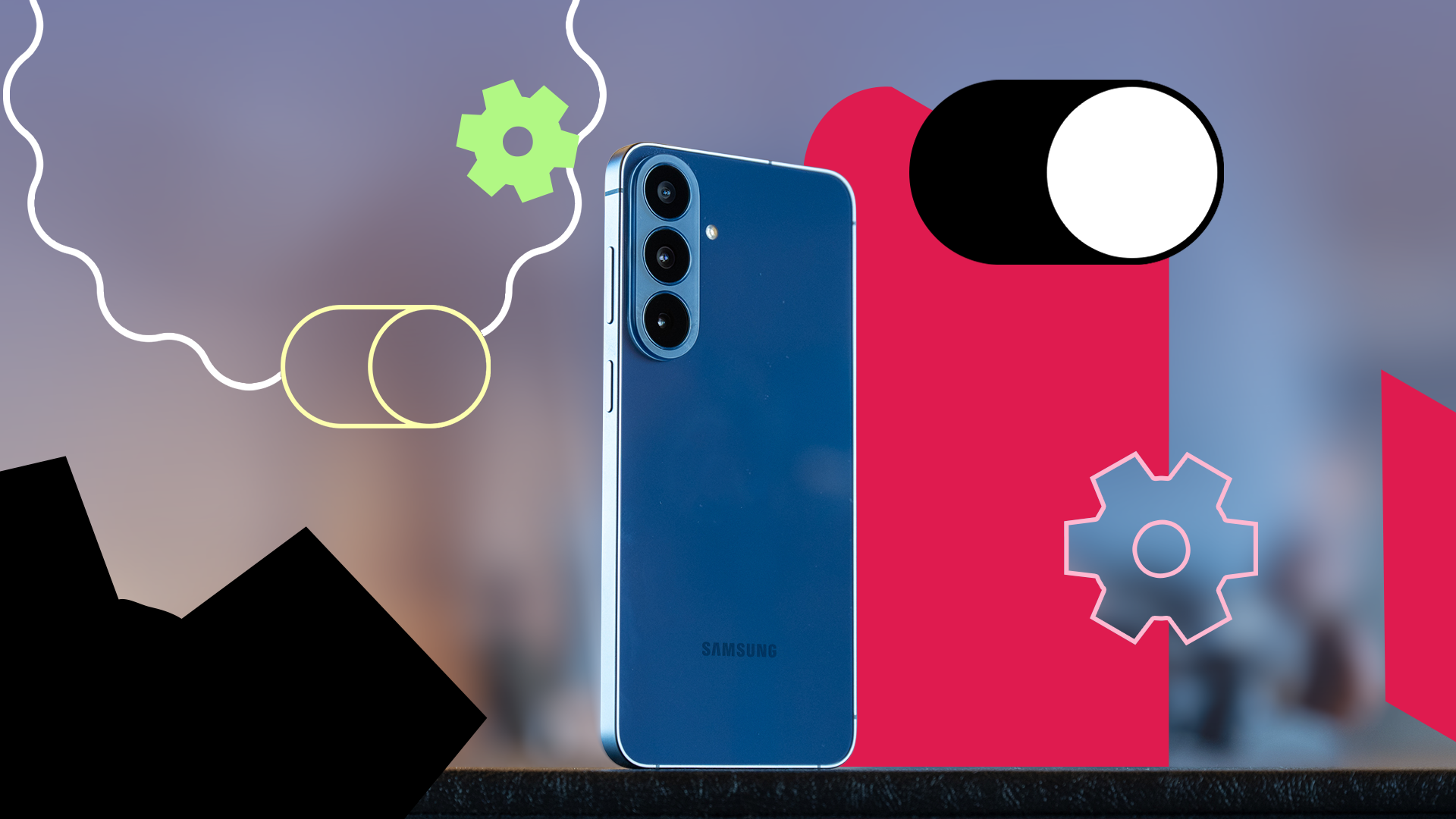
My New Phone Setup Routine
Hello there, tech friends! If you are anything like me, getting a brand-new Android phone is super exciting. Opening that box and peeling off the plastic screen protector is the best feeling in the world.
Because of my job as a tech blogger, I test and swap smartphones all the time. I do this setup process way more than the average person. Trust me, I have done it hundreds of times!
When you turn on a new phone for the first time, it asks for your Wi-Fi and your Google account. You tap "Next" a few times, and boom—you are on the home screen. But wait! You are not done yet.
Most default settings on Android are okay, but they are not the best. They can drain your battery fast, show annoying ads, or make your phone feel slow.
Do you want to know a secret? I always change a few hidden settings right away. These simple tweaks make my phone faster, save battery life, and protect my privacy. Let me show you the exact things I do the moment I get a new phone.
1. Turn Off Unnecessary Notifications
Nobody likes a noisy phone. When you install your apps again, almost every single app wants to send you push notifications. Do you really need news alerts from your flashlight app? Probably not.
Constant buzzes and pop-ups distract you all day. Worse, they wake up your screen and eat your battery.
How to fix it:
- Open your phone's Settings app.
- Tap on Apps or Notifications.
- Look at your list of apps.
- Turn off notifications for any app that does not need to bother you.
Keep notifications on only for chat apps, email, and important tools. Your peace of mind will thank me later!
2. Stop "Hey Google" Voice Activation
Google Assistant is a neat tool. You can say "Hey Google" out loud, and your phone wakes up to help you. But here is the catch: your phone's microphone has to listen to your voice *all the time* to catch those two words.
This feature uses extra battery power. Also, some people worry about privacy when a phone listens all day long.
How to fix it:
- Open the Google app on your phone.
- Tap your profile picture in the top right corner.
- Go to Settings, then tap Google Assistant.
- Tap on Hey Google & Voice Match.
- Turn the switch to Off.
You can still open Google Assistant by holding down the power button. You do not need the phone to listen to you 24/7.
3. Make Text and Icons Smaller for More Space
Phone makers usually set the screen zoom and text size pretty large out of the box. This makes it easy for older people to read, but it wastes a lot of screen space for the rest of us.
When text is too big, you have to scroll a lot more to read a simple website or chat message.
How to fix it:
- Open Settings.
- Tap on Display.
- Look for Font size and style or Screen zoom.
- Slide the bar to make things a little smaller.
This simple trick lets you fit way more words on your screen at the same time. It makes your phone feel bigger and cleaner!
4. Clean Up the Home Screen Chaos
When you finish setting up a new Android phone, your home screen is usually a big mess. You get pre-installed games, sponsored shopping apps, and random shortcuts you will never touch.
Clutter makes it hard to find the apps you actually use every day.
How to fix it:
- Long press on any app icon you do not want.
- Tap Uninstall or remove it from the home screen.
- Group your favorite apps into folders (like "Social" or "Tools").
I like to keep my home screen very clean. I only put my camera, web browser, and messaging apps on the main page. A clean screen leads to a clear mind!
5. Turn on Dark Mode Immediately
If your phone has an OLED screen (and most modern phones do), this is the number one setting you need to change. Dark mode swaps bright white backgrounds for deep black colors.
Why do I love dark mode? First, it does not hurt my eyes at night in a dark room. Second, black pixels on an OLED screen turn completely off. This means they use zero battery power!
How to fix it:
- Go to Settings.
- Tap Display.
- Turn on Dark Theme.
Your battery will last longer, and your eyes will feel much better at the end of the day.
6. Speed Up System Animations
Do you want your phone to feel twice as fast without buying a new one? There is a secret developer trick for this. When you open an app or go back home, Android plays a short, fancy animation. These animations take a fraction of a second, but they add up.
You can speed up or turn off these animations to make your phone feel instant.
How to fix it (takes one minute):
- Go to Settings > About Phone.
- Find Build Number.
- Tap on "Build Number" seven times fast. Your phone will say, "You are now a developer!"
- Go back to the main Settings menu and look for a new menu called Developer Options.
- Scroll down until you find Window animation scale, Transition animation scale, and Animator duration scale.
- Change all three from 1x to 0.5x (or turn them off completely).
Try opening an app now. You will see how much snappier your phone feels right away!
Conclusion
Setting up a new phone does not have to stop at the basic wizard screen. By taking just ten minutes to change these hidden settings, you turn a normal phone into *your* personal, fast, and battery-friendly device.
Next time you unpack a new Android phone, give these tips a try. Which of these settings do you change first? Let me know, and happy phone using!


No comments:
Post a Comment