
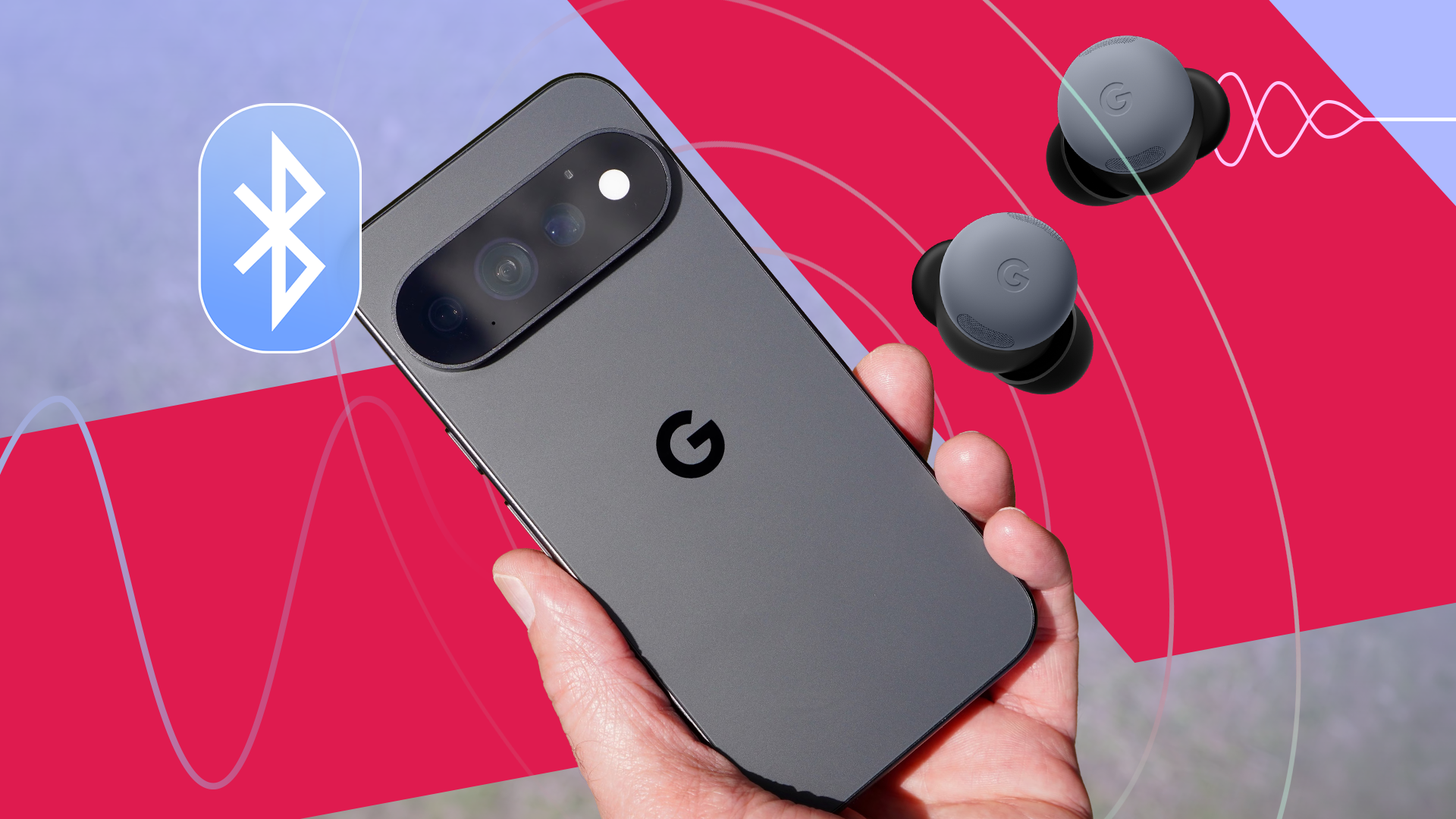
Music Sounds Better After I Changed This One Setting on My Pixel
Hi there! If you love listening to music on your phone, this article is for you. As someone who tests a lot of gadgets, I see this problem all the time. People buy expensive headphones, plug them into their Android phones, and just assume they are getting the best sound possible.
Most of the time, that is not true.
Recently, I made a small change to a hidden setting on my Pixel phone, and the difference was huge. The music suddenly sounded richer, clearer, and much louder. The best part? You do not need to buy new headphones to get this fix. You just need to change one setting.
Why Does Phone Audio Often Sound Flat?
Think about how your phone sends music to your wireless headphones. It uses Bluetooth. To do this, the phone squishes the music file into a smaller size, sends it through the air, and your headphones put it back together.
This squishing process is called a codec. Different headphones and phones use different codecs. Some codecs are like a low-quality photocopy of a picture. Others are like a high-definition photo.
By default, Android often picks a safe, basic codec to save battery and keep the connection stable. But if you have good headphones, you are missing out on amazing sound quality.
How to Find the Hidden Audio Settings on Your Pixel
To fix this, we need to unlock a secret menu on your Pixel phone called Developer Options. Do not worry; this is totally safe. It will not break your phone.
Follow these simple steps:
- Open the Settings app on your Pixel.
- Scroll all the way down and tap on About phone.
- Scroll down again until you see Build number.
- Tap on Build number seven times very fast.
- You will see a message on your screen that says, "You are now a developer!" (You might need to type your lock screen PIN here).
That is it! You just unlocked the secret menu.
The Magic Setting: Changing the Bluetooth Audio Codec
Now that you are a developer, let us find the audio settings and make your music sound great.
- Go back to the main Settings menu.
- Tap on System.
- Tap on Developer options.
- Scroll down a bit until you see a section called Networking or Audio. (Or use the search bar at the top of Developer Options and type "Codec").
- Look for Bluetooth Audio Codec and tap it.
You will see a list of options pop up. This is where the magic happens.
Which Codec Should You Choose?
When you open the codec list, you will see names like SBC, AAC, aptX, or LDAC. Which one should you pick?
It depends on your headphones, but here is a simple guide:
- LDAC: If you use Sony headphones or earbuds, choose this. It sends a lot of data and makes music sound amazing.
- aptX (or aptX HD): If you use brands like Bose, Sennheiser, or Jabra, look for aptX. It gives you very clear sound with almost no delay.
- AAC: If you use Apple AirPods, this is usually the best choice for Android, too.
Tap your preferred codec. Next, go down to Bluetooth Audio Sample Rate and Bluetooth Audio Bits Per Sample (if they are not grayed out). Change them to the highest numbers available on your screen.
Did It Work? What to Listen For
Once you change these settings, put your headphones back on and play your favorite song.
Can you hear the difference? Listen closely to the background instruments. Do the vocals sound clearer? For me, the change was like taking cotton out of my ears. The bass felt deeper, and the high notes did not sound so sharp.
Keep in mind: if the music starts to stutter or cut out when you walk around, your headphones might not be strong enough for the highest setting. If that happens, just go back to the menu and lower the sample rate slightly.
Final Thoughts
It is funny how we spend hundreds of dollars on headphones, but we forget to check the software settings on our phones. It takes less than two minutes to unlock Developer Options and pick the right codec.
Give this a try on your Pixel phone today and let me know in the comments if you can hear the upgrade. Happy listening!


No comments:
Post a Comment