
Why I Left Google Photos (And Why You Might Want To Do It Too)
For a long time, Google Photos was my favorite app on my phone. I loved it because it gave me unlimited photo storage for free. It was so easy to use. All my pictures went straight to the cloud without me doing anything.
Then, the free unlimited storage ended. But I did not leave. Why? Because I already had thousands of pictures sitting in Google’s cloud. It felt too hard to move them. I fell right into a classic trap. I stayed because I was comfortable.
One day, I woke up and decided I was done. I did not want Google to hold all my memories anymore. I did not want my pictures scanned by computers to make ads for me. I wanted my privacy back. So, I deleted Google Photos and found a totally free, offline gallery app.
If you are tired of cloud storage fees and privacy worries, keep reading. I will show you how I did it and what app I use now.
The Problem With Cloud Gallery Apps
Cloud apps like Google Photos and Apple Photos seem great at first. They promise to keep your pictures safe. They say you will never lose a photo again.
But there is a hidden cost. Here is why many people are starting to hate cloud storage:
- Monthly Fees: Once you fill up your free space, you have to pay a monthly fee to keep your photos backed up. If you stop paying, what happens?
- Privacy Issues: Companies use smart computers (AI) to look at your photos. They know when you are at the beach, what food you eat, and who your friends are.
- Internet Needed: If you do not have Wi-Fi or mobile data, it is hard to see your older photos.
- The Trap: It is very easy to start using these apps, but it is very hard to download all your photos and leave.
I realized I did not need a giant computer in the sky to look at my pictures. I just needed a simple app that lives right on my phone.
My New Favorite App: A Simple Offline Gallery
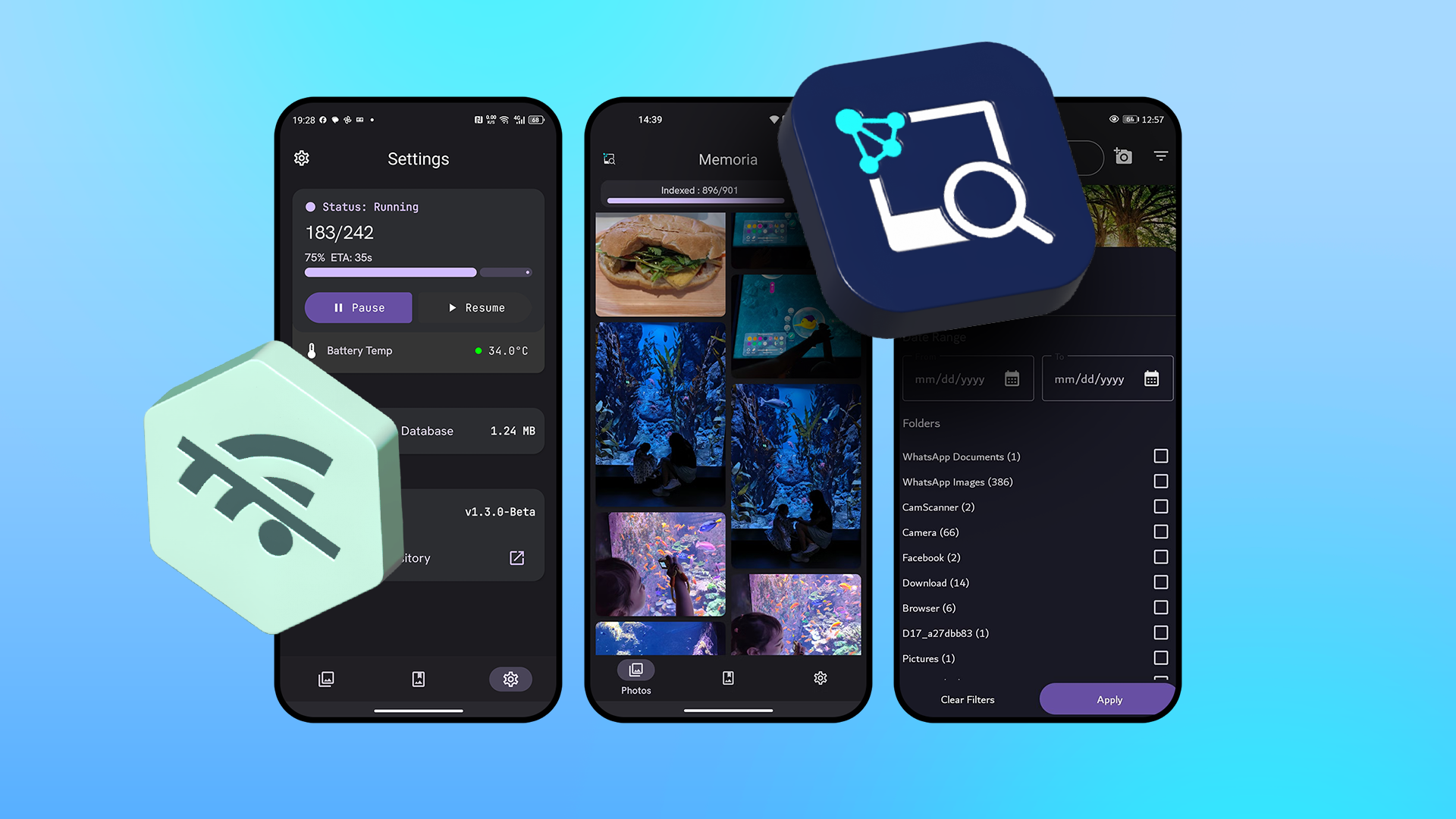
I looked for an app that does not use the internet. I wanted something fast, clean, and free of ads. I found a great offline gallery app, and it changed how I use my phone.
An offline gallery app only looks at the pictures stored directly on your phone's memory or your SD card. It does not send your photos to a server. It does not ask for your email address. It just works.
Best Features of an Offline Gallery App
Switching to a local gallery app felt like a breath of fresh air. Here is what I love about my new setup:
- Total Privacy: My pictures stay on my phone. No company can look at them or scan them.
- Super Fast: The app opens instantly. I do not have to wait for pictures to load from the internet.
- No Ads and No Subscriptions: I downloaded the app for free. I do not have to pay a single penny every month.
- Works Anywhere: I can look at all my photos even if I am deep in the woods with zero cell service.
How to Break Up With Google Photos
Leaving Google Photos is not as scary as it sounds. You can do it in a few simple steps. Here is how I moved all my pictures out of the cloud and onto my own terms.
Step 1: Download All Your Photos
First, you need to get your pictures back. You can do this on a computer. Go to Google Takeout (takeout.google.com). This is an official tool made by Google to help you download your data.
Find Google Photos in the long list and check the box. Scroll to the bottom and click "Next step." Google will put all your pictures into a big download file. Once it is ready, download it to your computer and unzip the folder.
Step 2: Move Pictures to Your Phone
Plug your Android phone into your computer with a USB cable. Create a new folder on your phone called "My Memories" or something similar. Copy all your downloaded photos from your computer into that folder on your phone.
If you have an SD card, you can put the photos right on the card. This saves a lot of space on your main phone storage.
Step 3: Choose Your New Offline Gallery App
Go to the Google Play Store and search for a good offline gallery app. Look for apps with high ratings and no internet permissions. Some popular choices that people love include:
- Simple Gallery Pro (or the free version)
- Aves Gallery (great for open-source fans)
- F-Stop Gallery
Install the app, open it, and give it permission to look at your phone's storage. It will show all your pictures right away.
Step 4: Turn Off Google Photos Backup
Open your old Google Photos app one last time. Go to your profile settings, find backup settings, and turn backup off. Then, you can safely delete the app from your phone.
What About Backup? Don't I Need It?
People always ask me: "What if you lose your phone?" That is a fair question. If your phone breaks, your photos could be gone forever.
Instead of trusting a big tech company with a monthly fee, I made my own backup system. Once a month, I plug my phone into my computer and copy my new photos to a small hard drive in my house. It takes two minutes, and I am in total control of my data.
You can also use a small USB flash drive made for phones if you do not have a computer. This way, your photos are backed up safely in your own home, not on a server owned by a giant corporation.
Final Thoughts
Getting rid of Google Photos felt great. I saved money, I got my privacy back, and my phone feels lighter and faster. You do not need to feed your personal memories to a cloud company just to look at your family pictures.
Try downloading an offline gallery app today. Test it out with a few photos. You might be surprised by how nice it is to keep your digital life in your own hands.


No comments:
Post a Comment