
Hey Android Fans! Let's Talk About a Cool New Gemini Feature
Have you ever tried to study a huge pile of documents on your phone? Maybe you have school reports, work PDFs, or long notes saved in Google Drive. Reading all of them takes a long time. Finding one specific fact inside them is even harder.
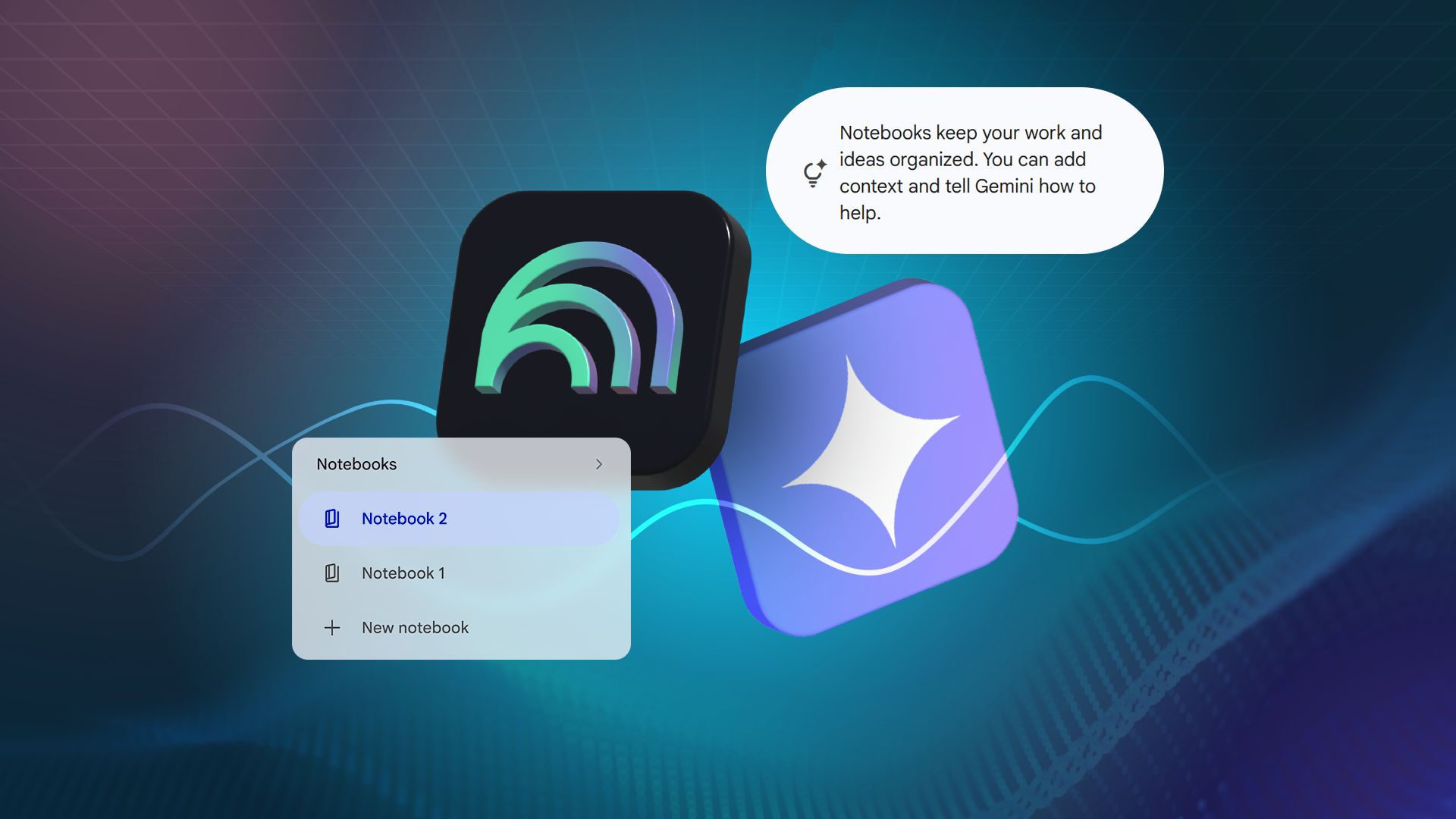
Google wants to fix this problem. They added a neat feature to their AI tool, Gemini. Now, you can link your Gemini Notebooks right inside your regular Gemini chat. That means you can talk to multiple research notebooks all at the same time in one single chat thread.
Let's break down what this means, how it works, and why it makes your life a lot easier.
What is Gemini Notebook?
Before we talk about the new feature, let us look at what Gemini Notebook (often known as NotebookLM) actually does.
Normally, when you ask an AI a question, it searches the whole internet. Sometimes, it gives you answers that are not quite right, or it makes things up. This is a big headache when you need exact facts.
Gemini Notebook works in a different way. It stays inside a box that you build. You give it specific sources. These can be:
- PDF files from your phone or computer
- Google Docs files
- Plain text notes
- Web links
Once you add these files, the AI only looks at *those* files. It does not look at the rest of the internet. If the answer is not in your documents, it tells you honestly. This keeps your research clean and accurate.
What is New? Linking Notebooks in One Chat
In the past, you had to work inside one notebook at a time. If you had research about history in Notebook A, and research about science in Notebook B, you had to switch back and forth.
Not anymore! Google now lets you link multiple notebooks into your main Gemini chat thread.
Imagine you have four different research notebooks ready. You open up Gemini, and you tell it to look at all four of them at once. Now, you can ask questions that use information from all four notebooks together.
You do not need to open and close different tabs. You just type your question, and Gemini does the heavy lifting.
An Easy Example of How It Works
Let us say you are planning a big trip or writing a long report. Here is how you can use this feature:
- Notebook 1: Holds your budget files and receipts.
- Notebook 2: Holds flight tickets and hotel guides.
- Notebook 3: Holds packing lists and clothing notes.
- Notebook 4: Holds local maps and places to visit.
Instead of checking each folder one by one, you open a normal Gemini chat. You link all four notebooks. Then, you type:
"Look at my four notebooks. What is my total budget, and do I have enough money left to visit the museum listed in my map notes?"
Gemini reads the files from all four places. It puts the puzzle pieces together and gives you a single, clear answer right on your screen.
Why Is This Useful for Your Phone?
We do a lot of work from our phones these days. We read PDFs on the bus, check notes in waiting rooms, and reply to emails on the go. Having a smart assistant that can read multiple folders of your personal work at once saves you a ton of time.
Here are the best benefits:
- Save Time: No more digging through twenty different files to find one fact.
- Better Focus: You chat with the AI like a human friend. You ask a question, and it finds the answer in your own documents.
- Stay Organized: You can keep your projects neat in separate notebooks, but still bring them together when you need to compare things.
How to Try It Out
If you want to use this feature, make sure you have your notes saved in Google Docs or as PDFs. Head over to Gemini and look for the option to add or link your notebooks. Select the ones you want to use for your current project, and start asking questions.
This update makes our phones feel a lot smarter. It turns your device into a real personal research assistant that actually knows what is inside your files.
What do you think of this new feature? Will you use it for your school work or your job? Let me know your thoughts in the comments below, and stay tuned for more easy tech tips!


No comments:
Post a Comment