
Google Wallet’s New Card Stack: Why Is It So Confusing?
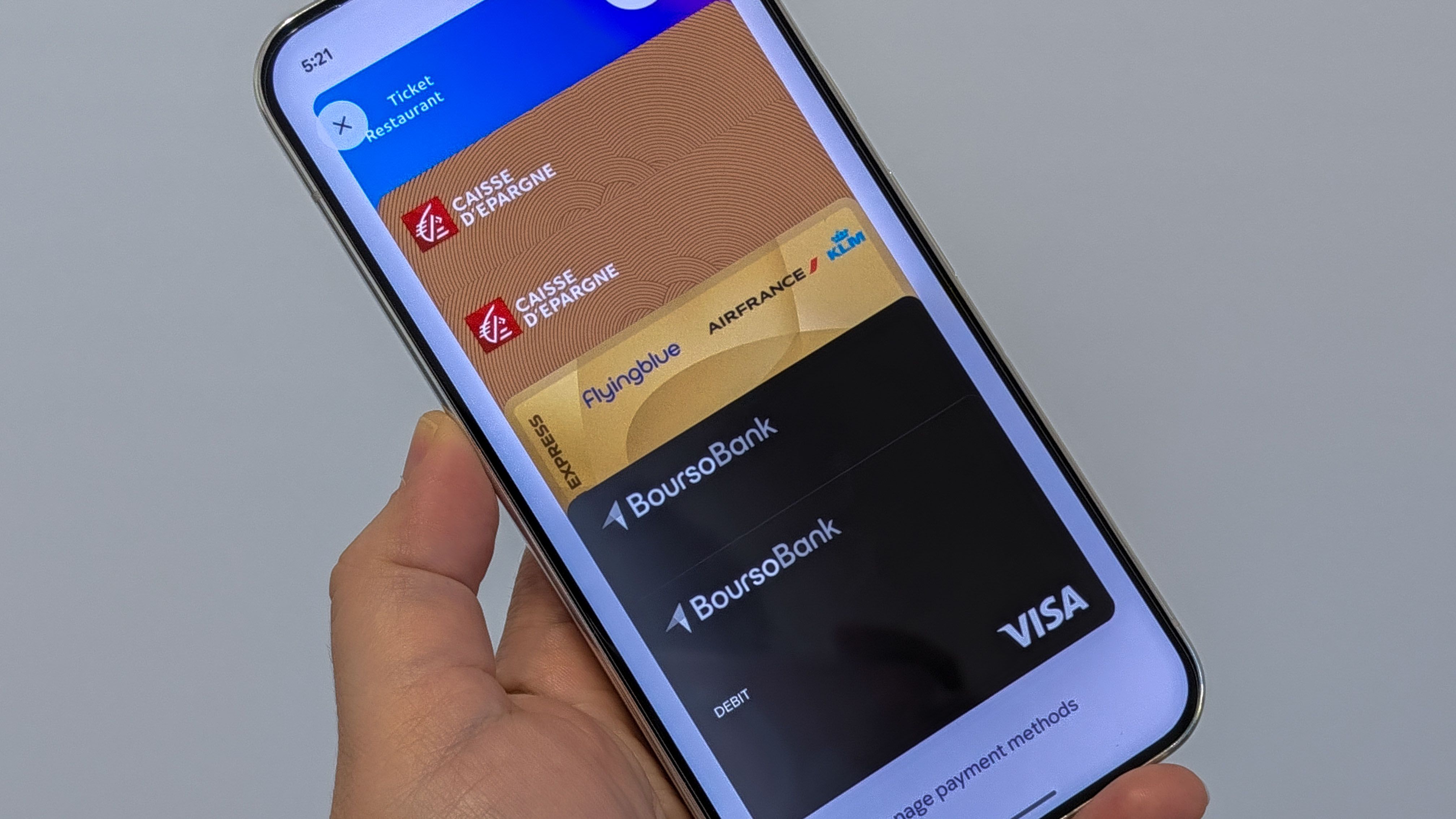
Hey there, Android friend! If you use Google Wallet to pay for your groceries, catch the bus, or board a flight, we need to talk. Google recently gave the Wallet app a big update. They added a new feature called the card stack.
Sounds cool, right? Well, not quite. Many users are finding this new look very confusing. Instead of seeing all your cards lined up neatly, they are now stacked on top of each other. It is hard to see what is in your wallet. Sometimes, you might even grab the wrong card by mistake at the cash register.
Do not worry! If you do not like this new design, you are not alone. Let us look at four simple ways to fix this mess and make Google Wallet easy to use again.
4 Easy Ways to Fix the Google Wallet Card Stack
Google loves to change its apps. One day, everything is in one place. The next day, things move to a totally different menu. Change is normal for Android, but you do not have to live with a confusing app. Here are four quick fixes you can try right now.
1. Turn Off "Compact View" or Grouping Settings
Google tries to save space on your phone screen by grouping similar cards together. This is what creates that annoying stack. To fix this:
- Open the Google Wallet app on your Android phone.
- Tap your profile picture in the top right corner.
- Go to Wallet settings.
- Look for options like "Compact view" or card grouping and turn them off.
By turning these settings off, your cards will spread out more. You will be able to see each card clearly without having to guess what is hidden underneath.
2. Reorder Your Most Used Cards
When cards are stacked, the one on top is the most important. If the wrong card keeps showing up first, you need to move your favorite card to the front.
- Open Google Wallet.
- Find the card you use the most (like your main debit card or transit pass).
- Press and hold that card with your finger.
- Drag it all the way to the top of the stack.
Now, every time you open the app or tap your phone to pay, your favorite card will be ready to go. No more digging through a stack of old gift cards!
3. Hide Cards You Do Not Use Often
Let us be honest. How many store loyalty cards or old event tickets do you have in your wallet right now? Too many! When you have a massive stack, the app gets messy.
Take a few minutes to clean house:
- Scroll through your Google Wallet.
- Tap on any card or pass you do not use anymore.
- Tap the three dots in the top right corner.
- Select Remove or Archive.
Removing old cards makes your stack much smaller. A smaller stack is much easier to read and use when you are in a rush.
4. Clear the App Cache or Downgrade (If All Else Fails)
Sometimes, updates act weirdly. If your cards are glitching or the stack refuses to move, your app might just need a fresh start.
- Go to your phone’s Settings.
- Tap on Apps, then find Google Wallet.
- Tap on Storage & cache.
- Tap Clear cache.
If that still does not fix the look, you can check the Google Play Store for another update. Google often fixes these annoying design bugs a few days after people complain about them.
Final Thoughts
App updates can be very frustrating. Just when you get used to how an app looks, Google changes everything. But with a few quick adjustments, you can tame the new card stack and make Google Wallet work for you again.
Do you like the new card stack, or do you miss the old look? Let me know in the comments below, and stay tuned for more easy Android tips!


No comments:
Post a Comment