

Turning Off Haptics and Animations Makes Your Phone Feel Dramatically Faster (And It Will Change How You Use It)
Have you ever felt like your smartphone—even a brand-new, top-of-the-line flagship—is starting to feel a bit sluggish? You tap an app icon, and instead of opening instantly, there is a micro-second stutter, a sweeping zoom-in animation, and a subtle buzz under your fingertips. While manufacturers spend billions of dollars designing these visual flourishes and sensory feedback loops to make devices feel "premium," they might actually be doing the exact opposite: making your technology feel frustratingly slow.
The secret to achieving lightning-fast performance isn't upgrading to a thousand-dollar handset every year. It’s a simple, counterintuitive software tweak: turning off haptics and system animations. By stripping away the visual and physical friction, you aren't actually increasing your phone's raw processing speed—you are simply removing the things that make you wait for the end result. Let’s dive deep into why this works, the psychology of perceived speed, and step-by-step instructions on how to supercharge your daily device.
The Illusion of Speed: Why Animations Exist
To understand why disabling animations makes such a massive difference, we first need to understand why they are there in the first place. When graphical user interfaces (GUIs) first made the jump to touchscreen smartphones, operating systems like iOS and Android needed a way to help the human brain track spatial relationships.
When you tap an icon, an animation of that app expanding to fill the screen tells your brain, "I am moving from the home screen into this specific application." It provides continuity. However, these transitions typically take anywhere from 300 to 500 milliseconds (0.3 to 0.5 seconds). While that sounds negligible, your brain perceives any delay over 100 milliseconds as a distinct pause. Multiply that half-second delay across hundreds of interactions every single day, and your phone starts to feel genuinely exhausting to use.
When you disable system animations, those transitional buffers disappear entirely. You tap an icon, and it is instantly there. There is no waiting for the zoom, no fading in, and no visual lag. The phone simply obeys.
Enter Haptics: The Subtle Time-Waster
Alongside animations, modern smartphones are packed with sophisticated linear actuators designed to mimic physical clicks, thuds, and ticks. Haptic feedback is undeniably cool. It makes typing on a glass screen feel somewhat tactile and gives physical weight to software toggles.
However, haptics also introduce tiny delays and sensory noise. More importantly, when your phone vibrates for every single keystroke, scroll, or tap, it adds a layer of micro-friction to your digital experience. Removing haptics cleans up your interaction with the device. Without the physical buzz pulling your attention to the hardware itself, your focus shifts entirely to the content on the screen. The result? Your phone feels lighter, cleaner, and radically more responsive.
The Psychology Behind "Perceived Performance"
Tech companies are obsessed with benchmarks, but users care about perceived performance. Perceived performance is how fast a device feels in real-world usage, as opposed to what a processor does in a laboratory stress test.
- Zero Latency: Cutting out animations reduces input-to-pixel latency, making actions feel instantaneous.
- Reduced Cognitive Load: Without flashing transitions and buzzing motors fighting for your attention, navigating menus requires less mental effort.
- Battery Efficiency: While negligible on modern chips, rendering fewer complex 3D transitions saves a tiny amount of GPU overhead.
Once you experience a phone operating at instant-response speed, going back to standard settings feels like wading through mud.
How to Make Your Phone Feel Blazing Fast Today
Ready to transform your device? Whether you are rocking an iPhone or an Android handset, the process is straightforward. Here is how you can strip away the fluff and unlock maximum speed.
How to Speed Up an iPhone (iOS)
Apple actually offers a dedicated accessibility feature designed precisely for this purpose. You can significantly cut down transition times without needing to jailbreak or use third-party apps.
- Open the Settings app on your iPhone.
- Scroll down and tap on Accessibility.
- Select Motion under the Vision section.
- Toggle on Reduce Motion. This replaces zooming and panning transitions with simple, instant cross-fades.
- To take it a step further, go back to Settings > Sounds & Haptics, scroll down to Keyboard Feedback, and turn off Haptic.
You can also check out third-party launcher apps on Android if you want even finer control over animation scales.
How to Speed Up an Android Phone
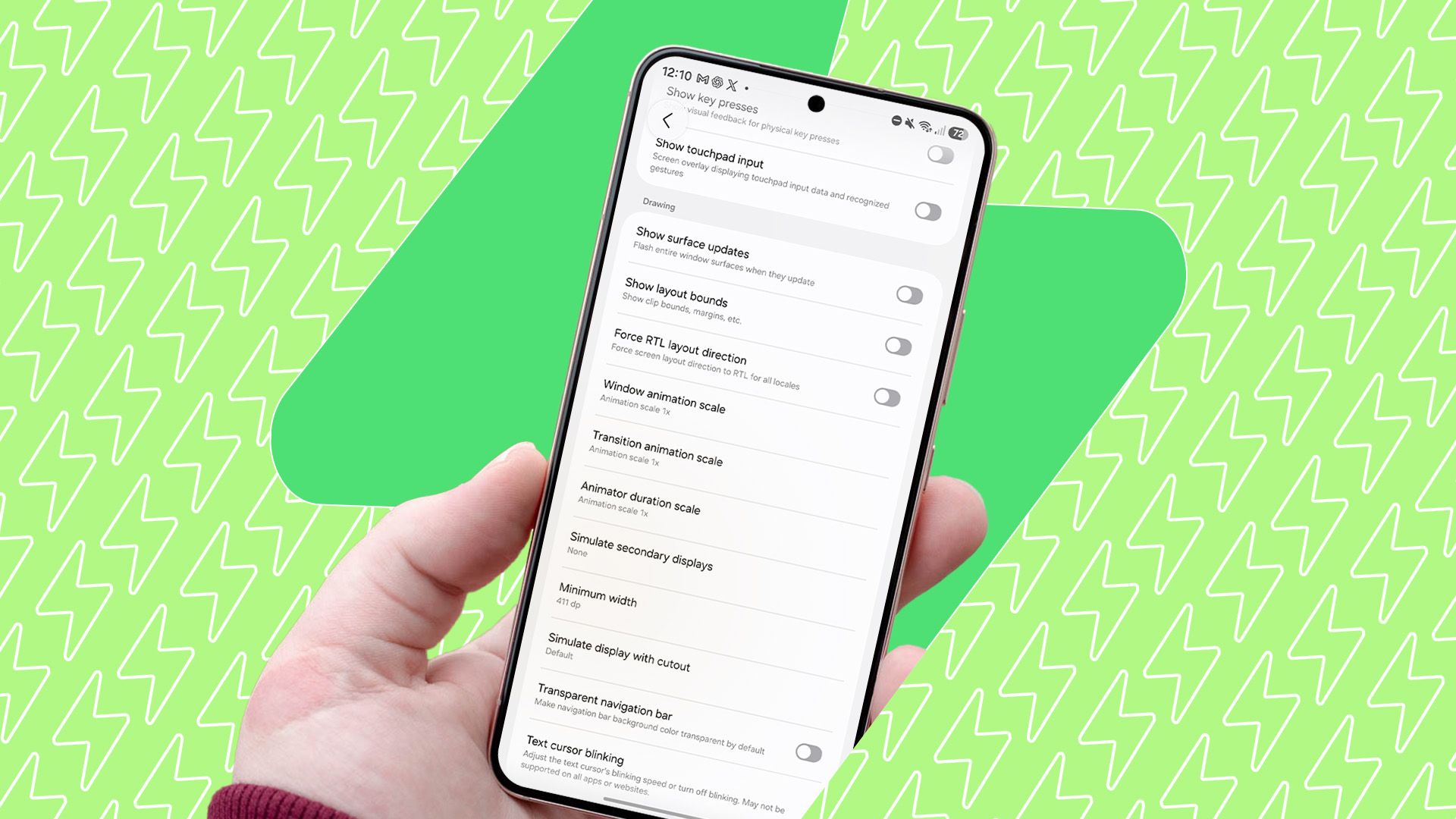
Android has long given users the keys to the kingdom via Developer Options, allowing you to manually scale down or completely turn off animation speeds.
- Open your phone’s Settings menu.
- Scroll to the very bottom and tap About Phone (or Software Information on some devices).
- Find the Build Number and tap it repeatedly (usually about 7 times) until a prompt appears saying, "You are now a developer!"
- Go back to the main Settings menu and open the newly unlocked Developer Options.
- Scroll down until you find three specific settings: Window animation scale, Transition animation scale, and Animator duration scale.
- Tap each one and change them from 1x to .5x (for a faster, snappier feel) or turn them Off entirely for instant transitions.
- To disable haptics, head to Settings > Sound & Vibration and turn off vibration intensities for touch feedback and keyboard interaction.
The Trade-Offs: What Will You Miss?
No configuration change comes without minor trade-offs. Before you dive in, it’s worth considering how your daily user experience will shift:
- Loss of Visual Context: Without animations, multitasking and switching between apps can initially feel jarring because your eyes don't have a visual trail to follow.
- A Less "Organic" Feel: High-end smartphones are designed to mimic the physical world. Removing haptics and smooth transitions strips away some of that luxury tactile sensation, trading it for pure, unadulterated utilitarian speed.
- App-Specific Animations: Keep in mind that system settings won't always override individual app designs. Some third-party apps have built-in loading animations that you cannot bypass.
However, for most users, the adjustment period lasts less than a day. Once your muscle memory adapts to the instantaneous feedback, returning to a standard phone feels sluggish and weighed down.
Final Verdict: Less Is More
We live in an era where tech marketing pushes us toward hardware upgrades we don't actually need. We are conditioned to believe that laggy performance means our processor is outdated or our RAM is overwhelmed. Often, the bottleneck isn't the silicon inside the phone—it’s the software design choices standing between your finger tap and the final result.
By turning off haptics and animations, you stop waiting for your phone and start actually using it. Try it out on your device today. Strip away the visual clutter, eliminate the buzz, and experience what true, unfiltered smartphone speed feels like.





No comments:
Post a Comment