
My Pixel Was Wasting 10GB of Storage Until I Found These Hidden Optimization Tricks
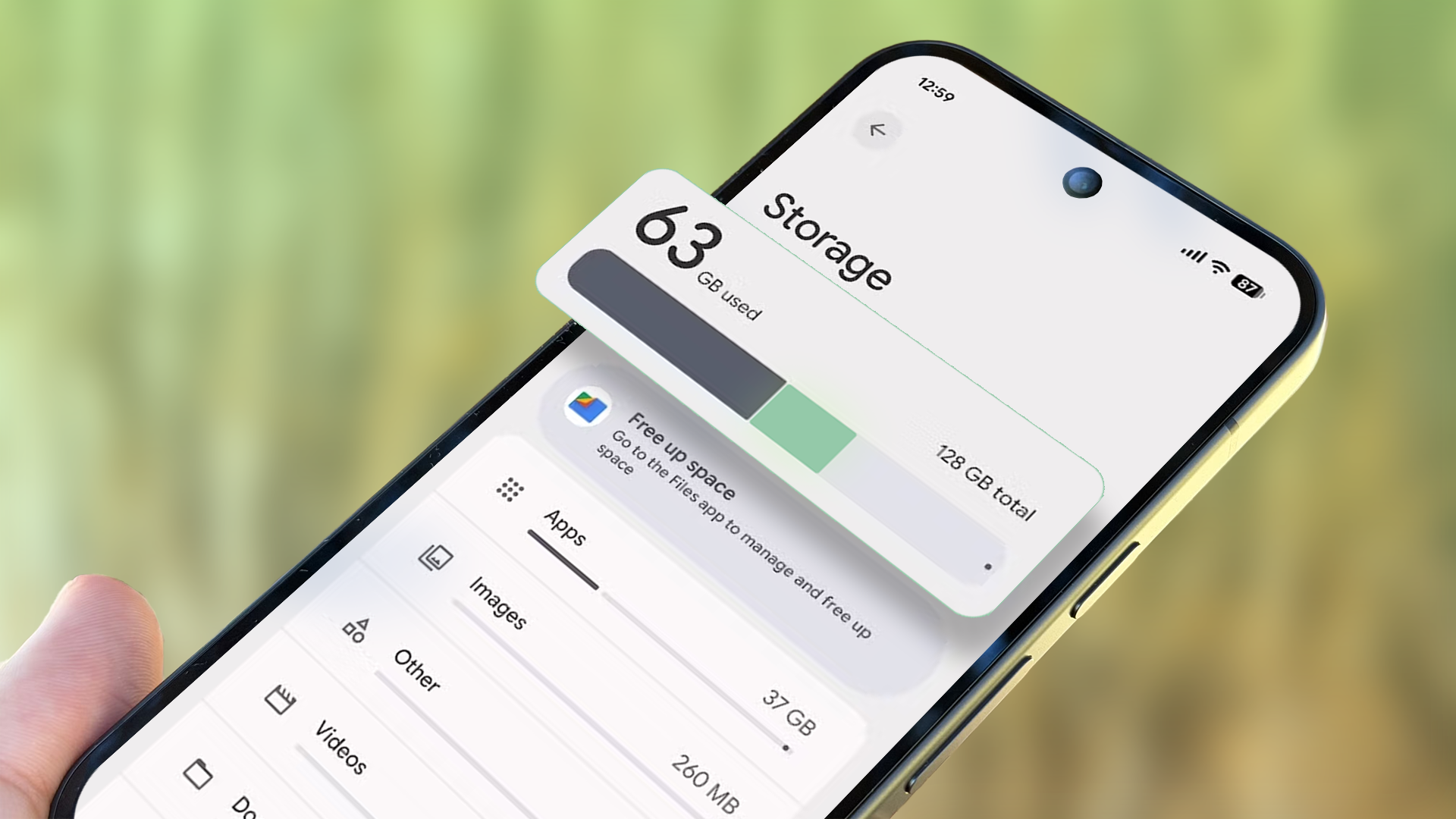
Let’s be honest for a moment: buying a smartphone with 128GB of storage in 2024—let alone moving into 2025—is practically asking for storage anxiety. When I pre-ordered my Google Pixel 10 Pro, I thought I was being financially responsible by skipping the 256GB tier. Fast forward a few weeks, and I was constantly staring at that dreaded "Storage Almost Full" warning, desperately deleting apps and clearing photo caches just to download a system update.
I was frustrated. But instead of resigning myself to a life of digital minimalism, I decided to do some digital forensics. I dug deep into the settings, tested out obscure cache-clearing methods, and hunted down the invisible data hoarders squatting on my device. To my absolute shock, I recovered over 10GB of wasted space in under 15 minutes—without deleting a single precious photo or essential app.
If your Pixel is choking on its own data, you are in the right place. Here are the ultimate, battle-tested hidden optimization tricks I used to reclaim my Pixel 10 Pro.
1. The Offline Map Black Hole (Google Maps)
We all love Google Maps. It’s arguably the best navigation app on the planet. But did you know it might be secretly hoarding gigabytes of data on your phone? If you are prone to downloading offline maps for road trips, international travel, or just to save cellular data in dead zones, those files stick around indefinitely.
Even worse, Google Maps frequently fails to automatically clean up outdated offline regions. When I checked my settings, I found three massive regional maps from a vacation I took six months prior. Together, they were munching on a staggering 4.2GB of storage.
How to fix it:
- Open Google Maps.
- Tap your Profile Icon in the top right corner.
- Select Offline maps.
- Review the list and tap the three dots next to any outdated maps to Delete them.
- *Pro Tip:* Toggle on "Automatically update offline maps" and "Automatically download offline maps" only via Wi-Fi to keep your downloads managed without surprises.
2. Phantom App Caches and "Other" Storage
Android is brilliant at managing background processes, but it’s notoriously lazy when it comes to cleaning up after itself. Over time, apps like Spotify, Instagram, Reddit, and Chrome build up massive temporary caches. While Android's native storage manager does a decent job showing you overall app sizes, it rarely tells you how much of that is dead-weight cache data.
When I manually inspected my heavy-hitter apps through the application manager, I found that my social media and streaming apps were holding onto nearly 3GB of useless cached data.
How to fix it:
- Go to Settings > Apps > See all [X] apps.
- Tap on your most-used apps (especially social media and streaming services).
- Select Storage & cache.
- Tap Clear Cache (Do not tap Clear Storage unless you want to log back in and reset app preferences).
- Repeat this for your top 10 most-used apps to instantly free up gigabytes.
3. Taming the Offline Media Monster (Spotify, YouTube, and Netflix)
We’ve all hit "Download" on an entire podcast season, a handful of offline Netflix movies, or massive Spotify playlists for a flight, only to completely forget about them. These media files are high-definition, heavily encrypted, and take up an immense amount of space.
On my Pixel, I discovered a forgotten offline playlist from Spotify that weighed in at 2.8GB, alongside three downloaded YouTube videos I had already watched.
How to fix it:
- Open Spotify, go to Settings > Storage, and review your downloaded content.
- Open Netflix, navigate to Downloads, and remove finished or unwatched media.
- Open YouTube, go to Library > Downloads, and sweep away old videos.
4. The Hidden Google Photos Trap
Wait, doesn't Google Photos back everything up to the cloud? Yes, but there's a catch. Even if your photos are backed up safely online, your Pixel keeps a local cache of recently viewed and edited images so they load instantly when you open the app.
While this is great for performance, the local cache can balloon out of control. Furthermore, if you’ve been editing photos directly on your device, duplicate local files and editing drafts can linger in hidden system folders.
How to fix it:
- Open Google Photos.
- Tap your profile icon and select Free up space. This tool safely removes local copies of photos and videos that are already safely backed up in the cloud.
- Regularly empty the Trash folder within Google Photos—deleted items sit there for 60 days, quietly occupying space.
5. Clearing System Dump Files and OTA Update Residuals
This was the ultimate surprise. Pixels receive monthly security updates and major OS upgrades (like Android 15 and beyond). During these updates, the phone downloads large installation packages. Normally, these delete themselves after installation, but occasionally, installation logs, temporary system dumps, and residual update files get left behind in the system partition.
By using the built-in Files by Google app, I found a batch of leftover installation residue hiding in the system directories.
How to fix it:
- Download or open Files by Google.
- Tap the Clean tab at the bottom.
- Look for the Junk Files or Duplicates card. The app will automatically scan for temporary application files, old APKs you downloaded and forgot about, and system cache junk.
- Tap Clear to instantly purge them.
Final Thoughts: Living Comfortably with 128GB
Before doing this deep dive, my Pixel 10 Pro was constantly hovering at 98% capacity, making everyday use sluggish and stressful. By simply auditing my offline maps, purging forgotten media downloads, aggressively clearing app caches, and running the Files by Google cleaner, I pulled back over 10GB of storage.
You don't necessarily need to shell out extra cash for a higher storage tier if you practice a little digital hygiene. Take 15 minutes today to run through these hidden optimization tricks on your Pixel, and enjoy your newly recovered breathing room!


No comments:
Post a Comment