
Why Wireless Android Auto Can Be So Frustrating
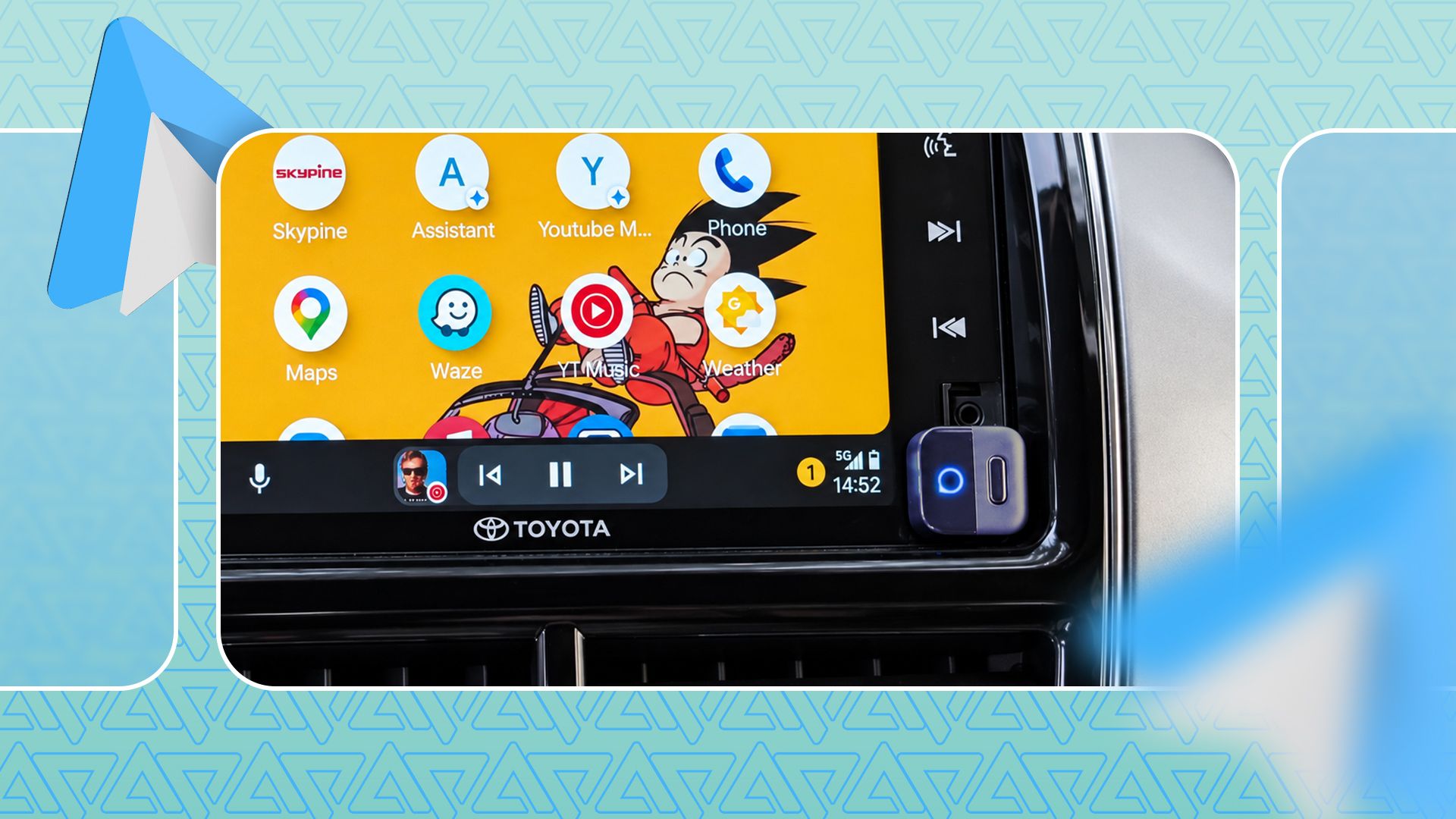
Do you love the idea of wireless Android Auto, but hate when it disconnects? You are not alone. Many drivers buy a cheap wireless adapter to get rid of messy cables in the car. It sounds great on paper. You step into your car, and your phone connects to the screen automatically.
Sadly, the reality is often different. The connection drops out. Music stutters. Maps freeze right when you need to make a turn. Many people give up and go back to a boring USB cable. I almost did that, too.
I bought a cheap $30 wireless adapter to clean up my car dashboard. At first, it drove me crazy. It dropped my connection every ten minutes. But then, I changed a few hidden settings on my phone and the adapter. Now, it works like magic every single time I drive. Let me show you how I fixed it.
Step 1: Clear the Cache and Restart Fresh
Phones store a lot of temporary data. Over time, this data gets messy and causes bugs. When your Android Auto starts acting up, you should always start with a clean slate.
Here is what I did first:
- Open your phone Settings app.
- Tap on Apps and find Android Auto in the list.
- Tap on Storage & Cache.
- Tap Clear Cache. (Do not tap clear storage unless you want to set up everything again).
- Restart your phone.
Next, I unplugged my wireless adapter from the car USB port and plugged it back in. This simple restart clears out old connection errors that make the adapter freeze.
Step 2: Change the Wi-Fi Band Settings
Here is the big secret most people do not know. Wireless adapters use Wi-Fi to talk to your phone. Most phones and adapters try to use the 5 GHz Wi-Fi band because it is fast. But sometimes, your phone gets confused and tries to use the crowded 2.4 GHz band instead. This causes terrible lag and sudden disconnects.
I opened the settings menu inside my wireless adapter. You can usually do this by connecting your phone to the adapter's Wi-Fi network while sitting in the car, and then typing a specific web address (like 192.168.1.101) into your phone browser. Check your adapter manual for the exact address.
Once you are inside the adapter settings menu:
- Look for the Wi-Fi Channel or Wi-Fi Band option.
- Change it from "Auto" to a fixed 5 GHz setting.
- Save the settings and let the adapter reboot.
This single change stopped my music from stuttering. The 5 GHz band has much less interference from other devices on the road.
Step 3: Tell Your Phone Battery Saver to Back Off
Android phones love to save battery life. If an app runs in the background for a long time, your phone might put it to sleep. Your phone thinks the wireless Android Auto app is just sitting there doing nothing, so it cuts its power.
When the phone cuts power to the Wi-Fi or Bluetooth link, your car screen goes black. To fix this, you need to tell your phone to leave Android Auto alone:
- Go to your phone Settings.
- Tap Apps, then open Android Auto.
- Tap Battery.
- Change the setting from "Optimized" to Unrestricted.
This tells your phone to keep giving the app full power, even if your screen is off or you are on a long road trip. It made my connection super stable.
Step 4: Forget Old Bluetooth Connections
Cars get confused when they have too many saved phones. If you have paired old phones, or if your phone connects to both the car Bluetooth and the adapter Bluetooth at the same time, things go wrong.
I cleaned up my Bluetooth list. I went into my car's built-in infotainment screen and deleted all old phones. Then, on my phone, I forgot all old car Bluetooth profiles. I kept only the connection needed for the wireless adapter. Less confusion means a faster and smoother start every time I turn the key.
Enjoy Your Clean, Wireless Dashboard
You do not need to spend $100 or more on a brand-name wireless adapter to get a good experience. Even a cheap $30 adapter can work like a premium device if you set it up the right way.
By clearing your cache, locking your Wi-Fi to the 5 GHz band, stopping battery saving on the app, and cleaning up old Bluetooth links, you can save your sanity. Now, I just get in my car, drop my phone on the console, and my Google Maps and Spotify pop up on the screen in a few seconds. No wires, no mess, and no frustration!


No comments:
Post a Comment