
Think the Play Store is 100% Safe? Think Again
Most people think that as long as you download apps directly from the Google Play Store, you are completely fine, right? We all trust Google to keep our phones safe. We assume that their security checks catch every single bad app before it reaches our devices.
Unfortunately, that is not always true.
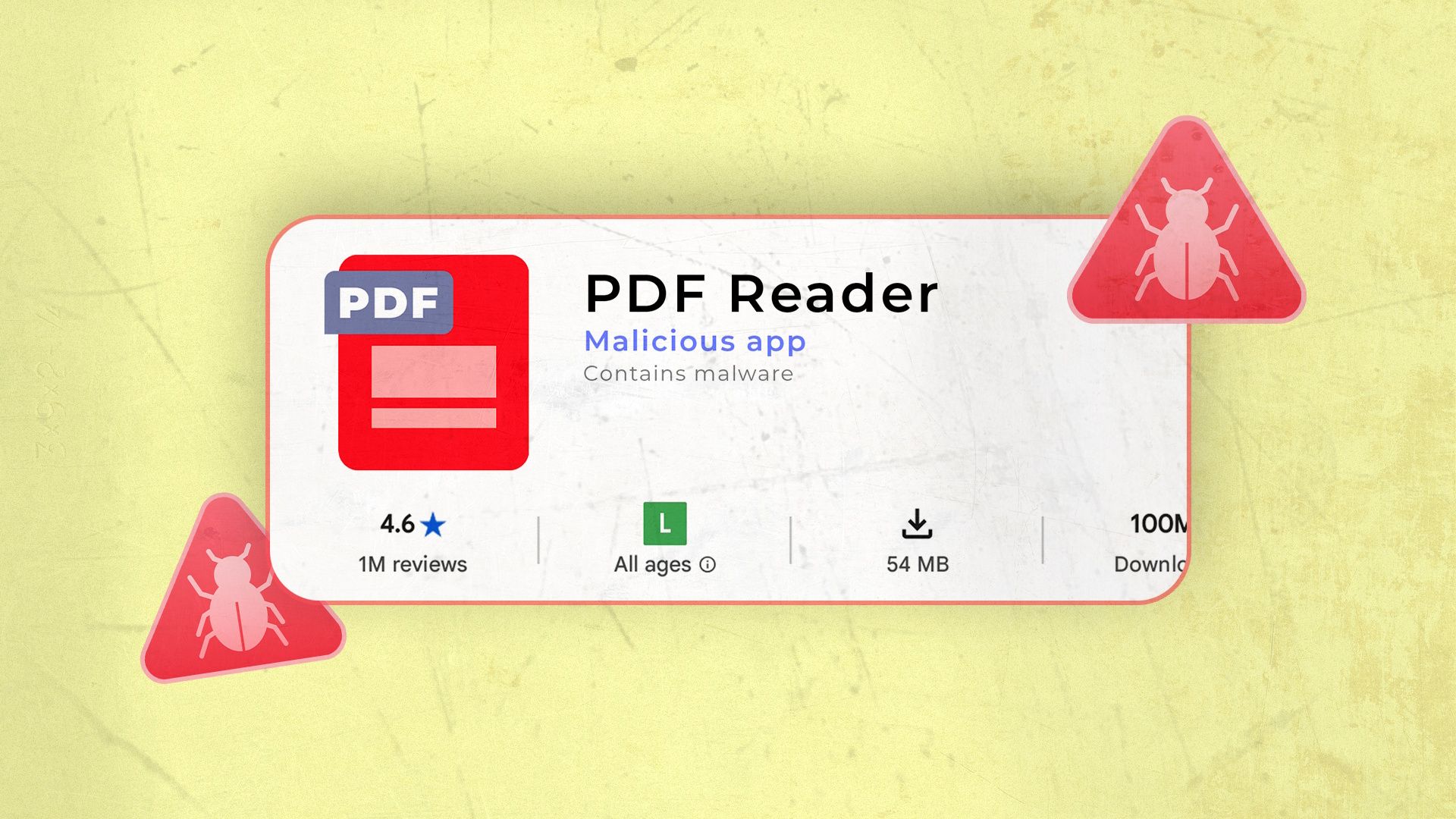
Recently, I found something scary. I discovered a malicious app hiding right inside the official Google Play Store. It was disguised as a simple, helpful PDF reader. But under the hood, it was up to no good. The worst part? Google Play Protect did not catch it at all.
How did this happen? And more importantly, how can you protect your phone from hidden threats like this? Let us talk about it in simple terms.
The Hidden Threat: A Wolf in Sheep's Clothing
We all need to read PDF files on our phones. Students, workers, and everyday users download PDF readers all the time. Bad actors know this. They know that PDF apps get millions of downloads.
Because of this, hackers often use PDF reader apps as a mask. They make an app look clean, simple, and useful. The app store listing looks great. It has fake 5-star reviews. It promises fast reading, easy sharing, and no annoying ads.
When you download it, the app actually lets you read your PDF files. This is a clever trick! It makes you trust the app. Because it does what it says it will do, you do not suspect a thing. Meanwhile, in the background, the app might be:
- Stealing your personal data.
- Watching what you type.
- Sending your information to strange servers.
- Downloading more harmful files onto your phone.
This is what happened with the app I found. On the surface, it was just a reader. Below the surface, it was a spy.
Why Did Google Play Protect Miss It?
Google Play Protect is the built-in security guard on your Android phone. It scans apps before you download them and checks your phone every day for bad behavior. Most of the time, it does a great job.
So, why did it fail this time?
Hackers are very smart. They use new tricks every day to hide their code. In this case, the app used a method called delayed payload delivery. Here is how that works in simple terms:
- The app goes to the Play Store with clean, safe code.
- Google's scanners check the app, see no danger, and let it into the store.
- You download the app to your phone.
- Once the app is safely on your device, it connects to the internet and downloads the dangerous part (the payload).
Because the bad code was not inside the app when Google scanned it, Play Protect did not see any red flags. It is like a thief walking through a security gate with an empty bag, and then filling the bag with stolen goods only after they get inside the building.
How to Spot Fake Apps on the Play Store
Since Google's automated scanners can sometimes miss these tricks, you need to be your own security guard. You do not need to be a tech genius to spot a fake app. Just look out for these warning signs:
- Check the developer name: Tap on the name of the company that made the app. Do they make other apps? Does the name look like random letters? Real companies usually have clear names and a website.
- Read the bad reviews first: Do not just look at the 5-star ratings. Scroll down and read the 1-star and 2-star reviews. Real users often leave warnings when an app acts strangely or shows too many pop-ups.
- Look at download numbers: If an app claims to be a famous tool, but it only has 50 downloads, be very careful.
- Watch out for extra permissions: Why does a PDF reader need access to your contacts, your microphone, or your location? It does not! If an app asks for permissions that make no sense, do not install it.
Simple Steps to Keep Your Android Phone Safe
You do not need to panic. You can still use the Google Play Store safely every day. Just follow these easy habits to keep your phone clean:
1. Keep Play Protect Turned On
Even though it missed this one app, Google Play Protect still blocks millions of threats every day. Open the Google Play Store app, tap your profile picture, tap Play Protect, and make sure scanning is turned on.
2. Clean Up Your App List Often
Go to your phone settings and look at your installed apps. Do you still use that PDF reader you downloaded six months ago? If you do not use an app, delete it. The fewer apps you have, the safer you are.
3. Use Built-In Tools When Possible
Did you know that most modern Android phones can already open PDF files using your web browser (like Google Chrome) or your built-in file manager? You often do not need to download a separate PDF reader app at all!
4. Install a Trusted Antivirus App
If you want extra protection, you can download a well-known security app from the Play Store (like Malwarebytes or Bitdefender) to run an extra scan on your phone once in a while.
Conclusion
Finding a malicious app in the official Play Store is a good reminder that no system is 100% perfect. Hackers will always try to find new ways to trick the system. But by staying alert, checking app permissions, and downloading only what you truly need, you can keep your personal data safe and your phone running smoothly.
Have you ever downloaded an app that felt strange or acted weirdly? Let me know in the comments below, and stay safe out there!


No comments:
Post a Comment