
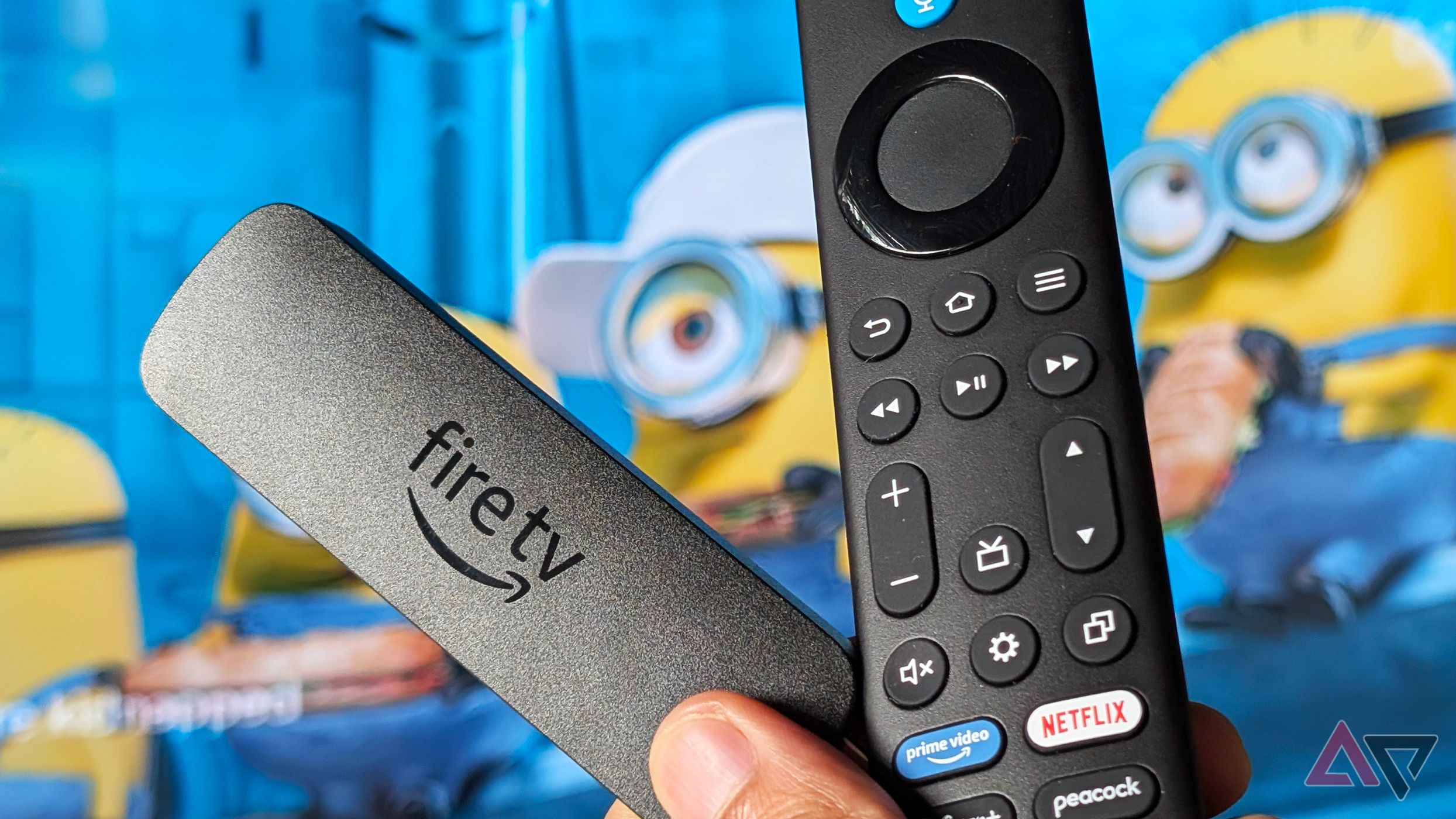
If you own an Amazon Fire TV or Fire TV Stick, you’ve probably experienced the dreaded "storage is running low" notification at the absolute worst possible time—usually right when you're settling in for movie night. Unlike smartphones or dedicated gaming consoles, streaming sticks are notorious for having severely limited onboard storage. For a long time, the standard advice for freeing up space on a Fire TV device was brutal: start ruthlessly deleting your favorite apps, clearing user data, and uninstalling games you paid for.
However, there is a hidden culprit behind disappearing storage, and fixing it doesn't require you to sacrifice a single app. Recently, I managed to recover a massive 2GB of Amazon Fire TV storage using just one setting. Here is how you can do it too, and why your Fire TV is secretly hoarding gigabytes of data right now.
The Hidden Storage Trap on Fire TV
Compared to basic streaming dongles, my Fire TV Stick 4K Max actually comes with a relatively generous amount of onboard storage—16GB, to be exact. With that much room, I felt confident downloading various streaming apps, niche media players, and a few casual games without worrying about the space meter.
But over the past few weeks, navigating the Fire TV interface started to feel sluggish. Apps took longer to load, thumbnail images stuttered, and eventually, the system threw a low-storage warning. Confused, I headed over to the settings menu to inspect my storage breakdown. What I found was shocking: despite having only a handful of essential apps installed, my system storage was nearly maxed out.
The culprit wasn't my apps. It was a background process that Amazon hides in plain sight: automatic data collection and unmanaged temporary files.
The One Setting That Recovered 2GB Instantly
After digging through the Fire TV settings—past the app manager and network diagnostics—I stumbled upon the feature responsible for the storage drain: Collected Data and App Usage Data.
Amazon devices are designed to track how you interact with content to serve personalized recommendations, ads, and interface improvements. While this is standard for modern smart TVs, the local footprint of this data collection can balloon out of control over months of continuous streaming.
Here is the exact step-by-step process I used to turn this off and claw back 2GB of precious space:
- Navigate to the Settings gear icon on the far right of your Fire TV home screen.
- Scroll down and select Preferences.
- Click on Privacy Settings.
- Locate Device Usage Data and turn it OFF.
- Go back one menu and click on Collect App Usage Data and turn that OFF as well.
- Finally, navigate to Settings > Applications > Manage Installed Applications, select your heavy-hitting apps (like Prime Video, Netflix, or YouTube), and choose Clear Cache (note: do not clear data, as this will log you out).
By disabling these background tracking metrics and clearing the bloated cache files associated with them, the system immediately flushed out redundant temporary files. My available storage jumped by a staggering 2GB in less than two minutes—without uninstalling a single app.
Why Fire TV Storage Fills Up So Fast
To understand why this trick works so well, it helps to look at how Fire OS manages storage. Fire TV runs on a modified version of Android, meaning it inherits many of Android's core behaviors—including aggressive caching.
Every time you browse the interface, watch a trailer, or load a dynamic advertisement on the home screen, the operating system downloads small chunks of data to make future loads faster. Multiply this by hundreds of interactions a day over several months, and your system partition becomes a digital dumping ground for temporary files.
Furthermore, streaming apps like Netflix, Disney+, and Prime Video constantly buffer video thumbnails, user profiles, and background metadata into the cache. When you combine heavy app caching with Amazon's native data collection logs, your storage disappears before you even realize what's happening.
Other Smart Ways to Optimize Your Fire TV Without Deleting Apps
If you've turned off data collection and cleared your app caches, but you're still looking to optimize your Fire TV experience, here are a few additional tips to keep your device running like new:
- Disable Featured Content Autoplay: Head to Settings > Preferences > Featured Content and turn off both Allow Video Autoplay and Allow Audio Autoplay. This stops the home screen from downloading heavy video previews in the background.
- Regularly Clear App Caches: You don't need to delete apps to reclaim space. Periodically going into Manage Installed Applications and clearing the cache for individual streaming apps can easily recover another 500MB to 1GB.
- Restart Your Device Weekly: Just like a smartphone or PC, restarting your Fire TV clears out the active RAM and forces the system to drop temporary background processes.
Final Thoughts
Streaming devices are meant to make entertainment effortless, but dealing with storage management shouldn't feel like a chore. By simply toggling off unnecessary data collection settings and cleaning out hidden system bloat, you can extend the lifespan of your Fire TV Stick and keep your favorite apps right where they belong.
Have you tried this storage-saving trick on your Fire TV yet? Let us know how much space you managed to recover in the comments below!


No comments:
Post a Comment