
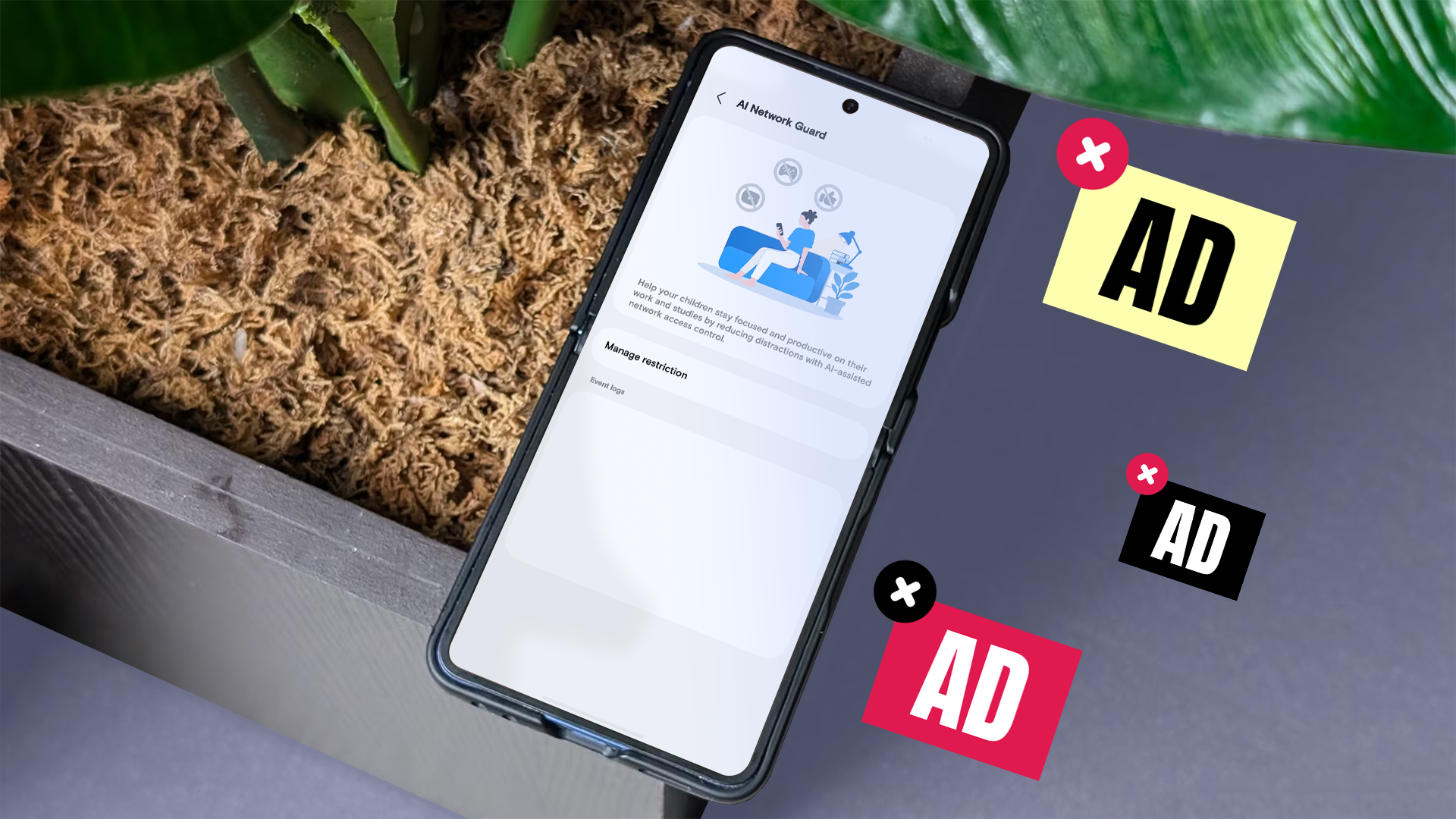
Tired of Annoying Ads on Your Galaxy Phone? Here is What I Found
Do you use free apps and websites on your Samsung Galaxy phone? If yes, you see a lot of ads. Developers use ads to make money. This means you do not have to pay for the app. That sounds fair, right?
The problem starts when the ads get too loud, pop up out of nowhere, or block the screen. Some ads even slow down your phone or use up your mobile data. Nobody wants that!
Many Android users look for ways to block these ads. Recently, I tested a new feature called Network Guard in One UI 9. I wanted to see how it works against a very popular tool: AdGuard's Private DNS. Both tools promise a clean, ad-free experience. But which one is better? Let us find out.
What is Samsung's New Network Guard?
Samsung works hard to make One UI better every year. In the new One UI 9 update, they added a feature named Network Guard. Samsung built this tool right into the phone settings.
Think of Network Guard as a little gatekeeper for your internet traffic. When an app tries to load an ad, Network Guard catches it. Then, it stops the ad from loading on your screen.
Here is why people like Network Guard:
- It is built directly into your Samsung Galaxy phone.
- You do not need to download an extra app from the Play Store.
- It is very safe because it comes from Samsung.
- It uses very little battery power.
To use it, you just go to your phone settings, look for network options, and turn it on. It works quietly in the background.
What is AdGuard's Private DNS?
Now let us talk about the other option: AdGuard's Private DNS. This is a very popular trick among Android users. You do not need to download the big AdGuard app to use this trick.
Instead, you go to your phone settings, find the "Private DNS" option, and type in a special web address provided by AdGuard. Once you do that, your phone routes all internet requests through AdGuard's servers.
When an app asks a server to show an ad, AdGuard says "No." The ad never reaches your phone.
Why do people love AdGuard Private DNS?
- It is completely free to use.
- It blocks ads across almost all apps and web browsers.
- It takes less than one minute to set up.
- It blocks not just ads, but also harmful websites and trackers.
My Real-World Test: How Did They Perform?
I put both tools to the test on my Samsung Galaxy phone. I wanted to see how well they stopped ads in everyday use. Here is what I noticed during my test.
1. Testing in Web Browsers
First, I opened popular news websites using Google Chrome and Samsung Internet. Websites are usually full of banner ads and video ads that pop up while you read.
AdGuard Private DNS did a fantastic job here. Most banner ads disappeared instantly. Pages loaded much faster because my phone did not waste time downloading heavy ad files.
Network Guard also blocked many web ads, but it let a few sneaky pop-ups through on some websites. It is good, but it is not as strong as AdGuard when it comes to deep web browsing.
2. Testing Inside Free Apps
Next, I opened some free games and utility apps. These apps usually show video ads between levels or banner ads at the bottom of the screen.
This is where Network Guard shined. Because it is part of Samsung's system, it caught a lot of the hidden ad trackers inside apps. Many game ads just showed a blank white box instead of playing the annoying video.
AdGuard Private DNS also blocked many in-app ads, but some apps with heavy custom code still managed to show ads. DNS blockers sometimes struggle with ads that come from the same server as the app content.
3. Battery and Speed
Nobody wants an ad blocker that kills their battery. I checked my battery settings after a full day of testing both tools.
Both options were very friendly to the battery. Since AdGuard Private DNS works at the network level, it does not use a background app to run. This means almost zero battery drain. Network Guard is also built into One UI, so Samsung optimized it well. It did not slow down my phone at all.
Which One Should You Choose?
Both tools are great, but they do different jobs. Here is a simple guide to help you pick the right one for your Samsung Galaxy phone:
- Choose AdGuard Private DNS if: You want a quick, free fix that blocks ads mostly in your web browser and helps pages load faster. It takes seconds to set up and works on almost any Android phone.
- Choose Network Guard if: You are using One UI 9 and want a native tool made by Samsung. It works very well inside free mobile apps and keeps your data safe without extra setup.
Final Thoughts
Free apps and websites need money to survive, and ads are how they pay their bills. But you do not have to live with a bad user experience. Tools like Samsung's Network Guard and AdGuard's Private DNS give you control back.
Give both of them a try on your Galaxy phone. See which one fits your daily habits better. Do you block ads on your phone, or do you just ignore them? Let us know your favorite trick in the comments below!


No comments:
Post a Comment