
Decoding Googlebook App Labels: Which Ones Matter?
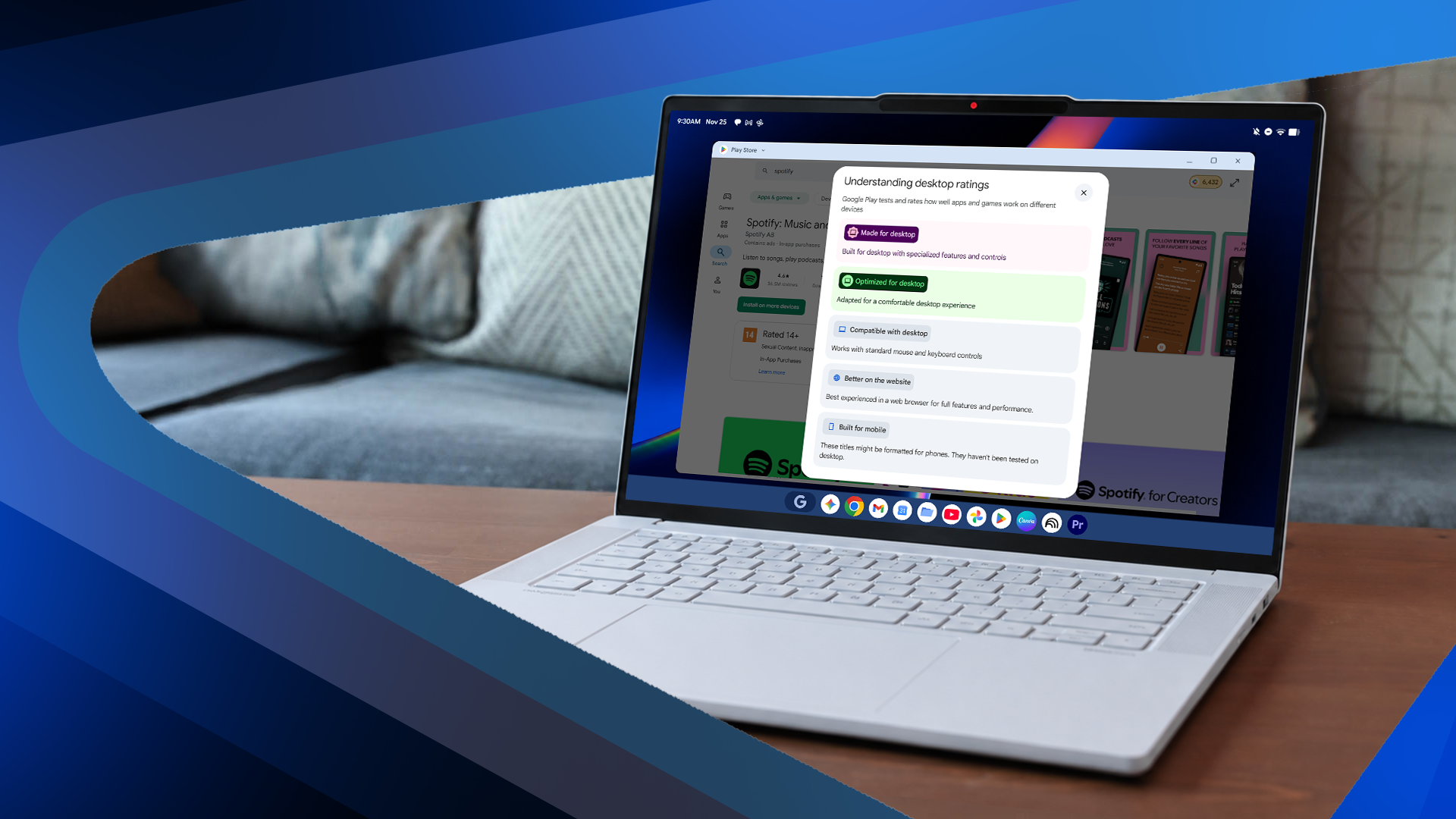
Google and its hardware partners just released their premium Googlebook laptops. If you are thinking about buying one, or if you already have one, you might notice something new. The Google Play Store now shows special labels on app pages for these devices.
Google uses five different labels to tell you how well an app works on a Googlebook. But here is the big secret: only two of these labels are actually good news for you.
Let us look at what these labels mean in plain English. That way, you can pick the right apps without wasting your time.
What Are Googlebook Laptops?
Before we talk about the labels, let us talk about the devices. Googlebooks are new laptops made by Google and its partners. They run a mix of phone apps and computer software.
Because these screens are much bigger than a normal phone screen, apps need to work differently. A phone app might look tiny, stretch out too much, or crash on a laptop.
To help you, Google added labels inside the Play Store. When you search for an app on your Googlebook, you will see a small tag under the app name.
The 5 Play Store Labels Explained
Google uses five different messages for apps on these laptops. Let us go through them one by one so you know what you are looking at.
1. "Optimized for Googlebook" (Good News)
This is the best label you can find. It means the app maker built the app specifically for big screens and keyboards.
When you see this label, the app will:
- Fill the screen nicely without looking weird.
- Let you use your mouse and keyboard easily.
- Run fast and smooth without random crashes.
If you see this label, download the app with confidence. It will work great.
2. "Works Well on Googlebook" (Also Good News)
This is the second good label. It means the app is mostly made for phones, but the developer made sure it works fine on a laptop.
The app might not have extra computer features, but it will not frustrate you. It fits the screen well, and you can scroll and click without issues. You do not need to worry about downloading apps with this tag.
3. "May Not Work Properly" (Warning)
Now we get into the tricky labels. If you see this tag, stop and think before you tap install.
This label means the app was made for tiny phone screens only. The developer did not test it on laptops. If you open it on your Googlebook, bad things might happen:
- The app might stay in a tiny phone-sized box in the middle of your screen.
- Buttons might be hard to click with your mouse.
- The app might freeze or close by itself.
Unless you really need this app, try to skip it.
4. "Not Compatible With Your Device" (Bad News)
This label is very clear. The Play Store will usually not even let you click the install button.
It means the app simply does not work on Googlebooks. The software inside the app cannot run on this type of hardware. You will need to look for a different app that does the same job.
5. "Tablet Version Available" (Mixed News)
This last label is a bit confusing. It usually shows up when you look at a phone-only app, but the developer actually made a tablet version.
The Play Store is trying to tell you: "Hey, do not download this phone version. Go find the tablet version instead." If you ignore this warning, the app will probably look stretched out and blurry on your large laptop screen.
Why Only Two Labels Matter
Out of all five labels, only "Optimized for Googlebook" and "Works Well on Googlebook" mean you are good to go.
The other three labels are basically warning signs. They tell you that the app is going to feel clunky, look ugly, or not work at all. Google is trying to save you time by showing these tags upfront.
When you buy a new laptop, the last thing you want is a screen full of broken apps. By paying attention to these small tags in the Play Store, you can keep your laptop running smoothly.
Tips for Finding the Best Apps
Want to make sure your apps run like a dream on your new Googlebook? Follow these simple rules:
- Check the tag first: Always look under the app name before you click install.
- Use the web version: If an app has a bad label, open its website in your web browser instead. Many apps work just as well as a website on a laptop.
- Update your apps: Developers add support for new devices every day. Keep your apps updated so old apps get better over time.
Final Thoughts
Googlebooks are a fun and exciting new way to use Android apps on a bigger screen. But because phone apps and laptop screens are so different, labels are necessary.
Remember to look for the green light from those top two labels. If you see a warning label, save yourself the headache and skip the download. What do you think of these new laptops? Are you planning to get one? Let me know in the comments below!


No comments:
Post a Comment