
The GPS Battery Drain Nightmare
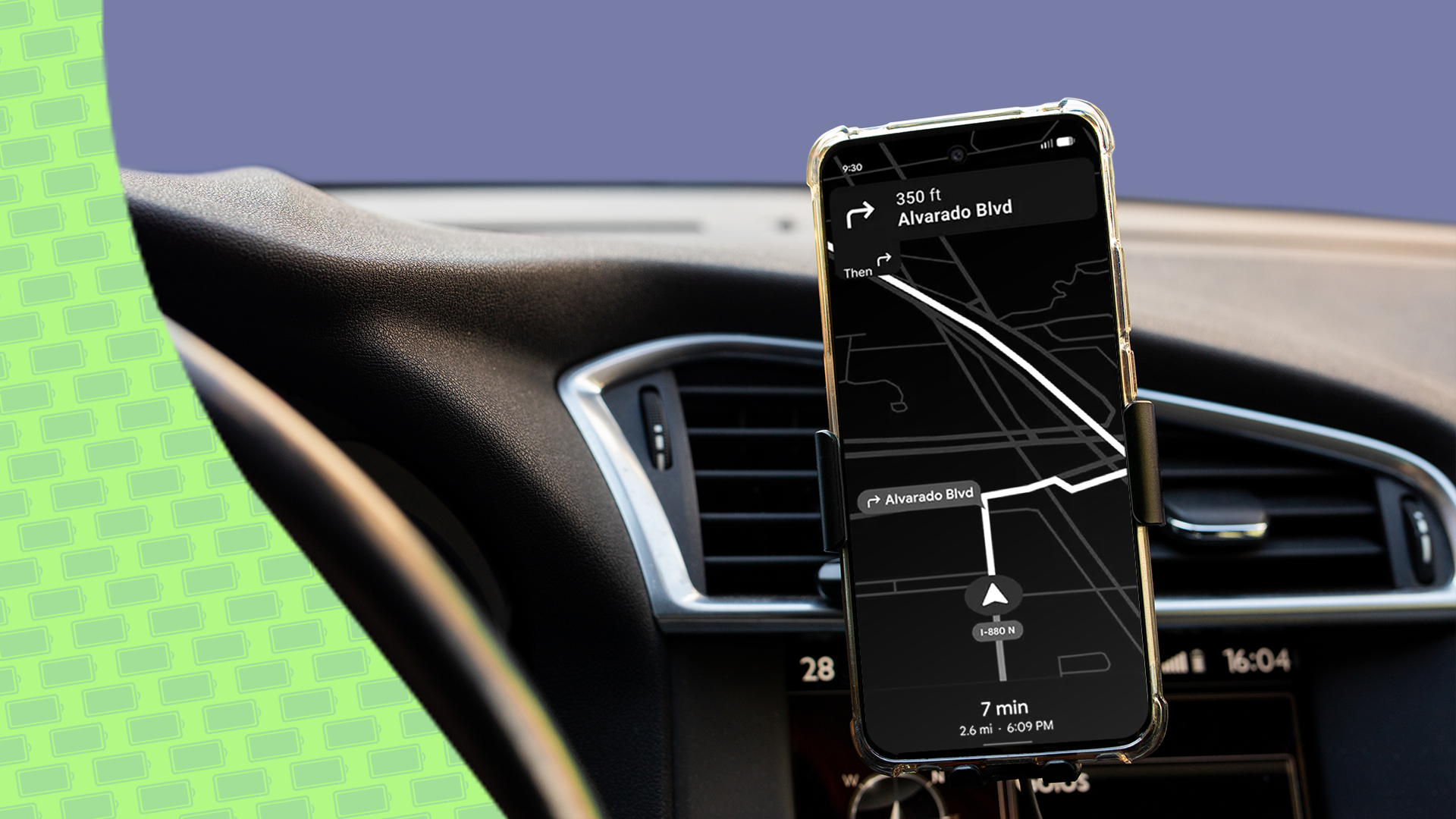
Picture this. You jump into your car for a long drive. You put your phone on the dashboard mount. You open Google Maps to find the best way to go. You hit the road and feel good.
Then, after thirty minutes, you look at your phone. Your battery was at ninety percent. Now it is at fifty percent. Oh no! Your phone is also very hot. It feels like a small heater in your hand.
If you drive an older car or a rental car, you might not have a good USB charger. Your phone starts to die fast. By the time you reach your trip, your phone is completely dead. Now you cannot make calls or check messages. This is a very frustrating problem for many Android users.
Why does this happen? Google Maps works hard. It uses your GPS to track your exact spot. It downloads a big map in real-time. It checks for traffic jams. It keeps your screen bright so you can see the turns. All of these things use a lot of power.
Luckily, there is a simple fix. I found a setting in Google Maps that saves my battery on long drives. Let me show you how to find it and use it.
The Hidden Setting That Saves Your Battery
Google Maps has many features. Some of these features run in the background. They use battery power even when you do not need them. The biggest battery drain is often high-accuracy location tracking and continuous data updates.
When you are on a long drive, your phone constantly talks to satellites and cell towers. It wants to know your speed and your exact spot every second. But do you really need super high accuracy every single second on a straight highway? No, you do not.
By changing a few simple settings on your Android phone and inside the Google Maps app, you can stop the heavy battery drain. You do not need to buy a new phone or a fancy fast charger. You just need to tell your phone to take a little break.
Step-by-Step Guide to Fix Your Battery Drain
Let us go through the steps together. Grab your Android phone and follow along. It will only take two minutes.
Step 1: Turn on Battery Saver Mode
Your Android phone has a built-in tool called Battery Saver. Many people think they can only use this when their phone is almost dead. But you can use it during long drives, too.
- Swipe down from the top of your screen to open the quick settings menu.
- Look for the Battery Saver icon and tap it.
- If you do not see it, go to your phone Settings, tap on Battery, and turn on Battery Saver there.
This stops background apps from using your battery. It also lowers your screen brightness a little bit. This helps your phone stay cool on the dashboard.
Step 2: Adjust Location Permissions
Google Maps needs to know where you are. But it does not always need your exact location down to the single foot when you are driving on a big highway.
- Open your phone Settings.
- Tap on Apps and find Maps.
- Tap on Permissions, then tap on Location.
- Make sure it is set to Allow only while using the app.
- If you see an option for Use precise location, you can turn it off for normal city walking, but keep it on for driving so you do not miss turns. However, if your phone gets too hot, turning off precise location when you know the route can help a lot.
Step 3: Download Offline Maps Before You Leave
This is the biggest secret to saving battery on long drives. When Google Maps has to download map pictures while you drive, it uses your mobile data. Using mobile data uses a lot of battery power.
You can download the map before you leave your house while your phone is on Wi-Fi:
- Open the Google Maps app on your Android phone.
- Tap your profile picture in the top right corner.
- Tap on Offline maps.
- Tap on Select your own map.
- Move the box over the area where you will drive.
- Tap Download.
Now, your phone does not need to download road data over the internet. It already has the map saved inside the phone. This saves a huge amount of battery and stops your phone from getting hot.
Other Smart Tips for Long Road Trips
Fixing your Google Maps settings is a great start. But here are a few extra tips to keep your Android phone charged all the way to your destination.
- Lower your screen brightness: A bright screen is the number one battery killer. Turn down your brightness before you start driving.
- Turn off Wi-Fi and Bluetooth: If your phone is searching for Wi-Fi networks while you drive down the highway, it wastes power. Turn off Wi-Fi in your quick settings.
- Use Dark Mode: Google Maps has a dark theme. Dark colors use less battery power on modern phone screens. Go to Google Maps settings, tap Theme, and choose Always in dark theme.
- Take your phone off the dash if it gets too hot: Direct sunlight through the windshield plus a working GPS will make your phone very hot. Hot batteries drain faster and can damage your phone. Put it near the air vent if possible.
Enjoy Your Drive Without Phone Stress
Long drives should be fun. You should listen to your favorite music or podcasts, not worry about your phone dying. By downloading your maps offline, turning on dark mode, and managing your battery settings, you can stop Google Maps from eating your battery.
Try these simple tricks on your next road trip. You will notice a big difference. Your phone will stay charged, and you will reach your destination with peace of mind. Safe travels!


No comments:
Post a Comment