
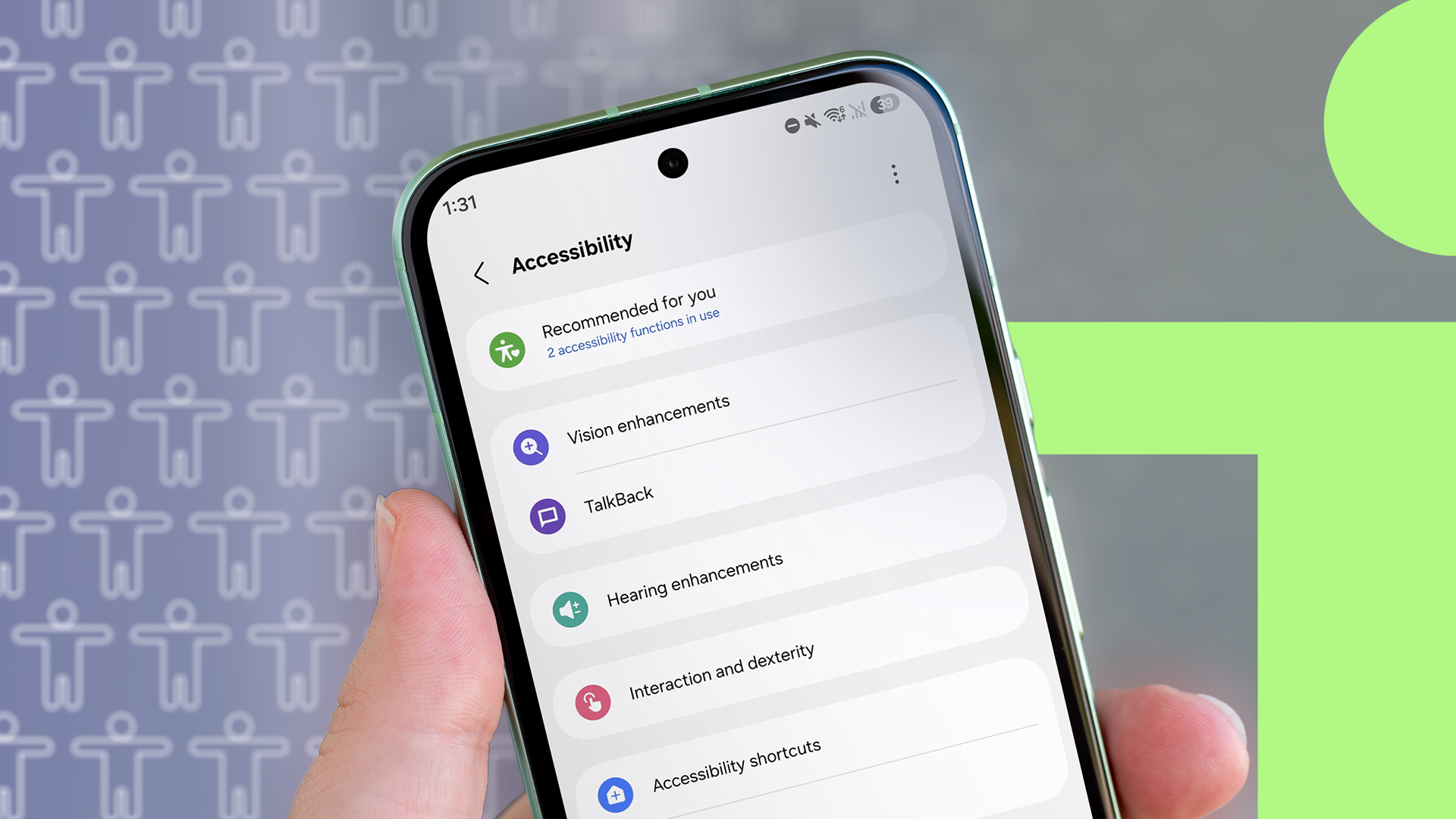
I Found the Best Android Performance Tweaks Hiding in the Accessibility Menu
Let’s be honest: when was the last time you actually explored the Accessibility menu on your Android smartphone? If you are like most tech enthusiasts, you probably set up your device, perhaps tweaked the dark mode and notification settings, and completely ignored the Accessibility section—assuming it was exclusively reserved for users with visual, auditory, or physical impairments.
I was right there with you. I hadn’t touched that menu in years, and I certainly wasn't looking for a speed boost or a performance miracle. I had simply opened it up to fix a stubborn font-size issue on my mom's phone. But what started as a quick favor turned into a fascinating rabbit hole that completely changed how my own daily driver operates.
Hidden deep within those altruistic settings are some of the most potent, system-level Android performance tweaks available today. Forget third-party RAM cleaners, sketchy battery savers, and bloated optimization apps. The secret to making your phone feel brand new was sitting in your settings menu all along.
Why Accessibility Settings Impact Performance
To understand why these tweaks work, we need to look at how modern mobile operating systems function. Android is designed to be universally accessible. To achieve this, the operating system includes powerful rendering engines, real-time animation scalers, and hardware-accelerated visual feedback loops specifically built to assist users who need extra visual or physical cues.
However, these features often require background processing power. By understanding how to toggle, adjust, or repurpose these tools, you can redirect your phone’s CPU and GPU power away from unnecessary visual fluff and right back into raw, responsive speed.
Let’s dive into the best hidden gems I discovered that day and how you can use them to supercharge your Android device right now.
1. The Animation Scale Trick: The Ultimate Speed Booster
You may have heard of the classic Developer Options trick where you reduce the window and transition animation scales to 0.5x or turn them off completely. While effective, it can sometimes make your UI feel jarring, robotic, and overly abrupt.
Inside the Accessibility menu—specifically under the Display or Color and Motion sub-menus depending on your device manufacturer—lies a more refined approach:
- Look for settings related to Remove animations or Reduce motion.
- Enabling this doesn't just speed up transitions; it completely eliminates the unnecessary rendering overhead that your GPU handles every time you swipe home, open an app, or pull down the notification shade.
- The result? Apps snap open instantly, and scrolling through heavy social media feeds feels butter-smooth, particularly on mid-range devices that struggle with heavy UI transitions.
2. High Contrast Text and Rendering Optimization
While designed for readability, toggling certain text-rendering adjustments can actually lighten the load on your display driver. High Contrast Text forces the system to render text in solid, uncompromising black or white, bypassing complex anti-aliasing layers in certain legacy applications.
If you have an older phone, you’ll notice that forcing system-wide contrast optimizations reduces graphical stutter when scrolling through text-heavy web pages in Chrome or reading long articles. It’s a subtle visual shift, but your processor will thank you for the simplified rendering pipeline.
3. Touch Feedback and Haptic Optimization
Have you ever noticed a slight micro-stutter when typing rapidly on your virtual keyboard or navigating through heavy menus? Often, this isn't a CPU bottleneck—it's a haptic feedback queue delay. The system is struggling to synchronize visual inputs with the linear haptic motor.
In the Accessibility menu, under Vibration and haptic strength (or interaction controls), you can fine-tune or streamline touch feedback responses. Disabling unnecessary touch vibrations or simplifying haptic feedback frees up system resources and eliminates those frustrating fractional-second input lags.
4. Switch Access and Background Process Restrictions
One of the heaviest drains on Android performance is background telemetry and accessibility services running rampant. Ironically, the Accessibility menu allows you to audit exactly what is using these privileges.
- Navigate to Installed Services within your Accessibility settings.
- Audit every single app listed there. Third-party apps often request accessibility permissions to "read your screen" or automate tasks, quietly eating up RAM and battery in the background.
- Revoking unnecessary permissions from rogue applications immediately reclaims valuable memory and stops micro-stutters dead in their tracks.
How to Find These Settings on Your Phone
Because different manufacturers (like Samsung, Google, Motorola, and OnePlus) skin Android differently, the exact path might vary slightly, but the general roadmap is universal:
- Open your phone's Settings app.
- Scroll down and tap on Accessibility.
- Take your time exploring sub-menus like Vision, Hearing, and Interaction/Dexterity.
- Look for toggles related to motion reduction, contrast, touch controls, and installed background services.
The Verdict: Stop Using Junk Cleaner Apps
The tech industry is flooded with worthless optimization apps promising to "boost your RAM" or "cool down your CPU." Almost all of them are bloated adware that actively harms your battery life.
The best performance tweaks are already baked directly into the operating system—you just have to know where to look. By venturing into the Accessibility menu—a place most users only visit by accident—you unlock native, system-level control over how your device allocates its resources.
Give these tweaks a try on your Android device today, drop your preconceived notions about accessibility settings at the door, and enjoy a faster, more responsive smartphone experience.


No comments:
Post a Comment