

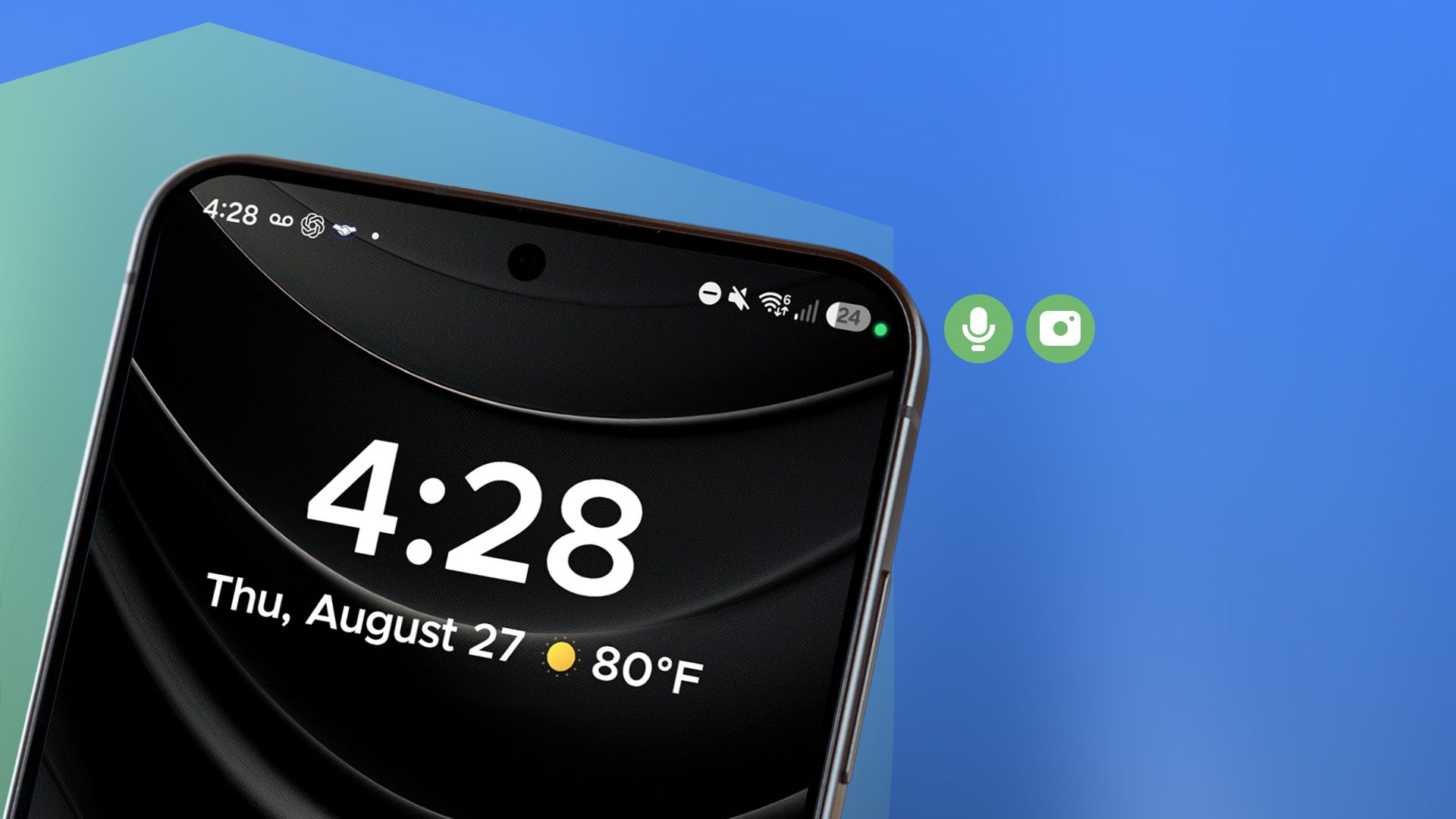
We’ve all been there. You’re casually scrolling through your phone, minding your business, when you notice a tiny, persistent green dot blinking innocently in the corner of your screen. For years, I used to treat that little green indicator as just another piece of status-bar clutter—right up there with the alarm clock icon, Bluetooth symbol, and battery percentage. I barely even blinked an eye at it.
That is, until I decided to actually investigate what it means. And honestly? What I discovered completely changed how I look at my smartphone, how I manage my app permissions, and how I protect my digital privacy on a daily basis.
If you haven't been paying attention to Android's privacy indicators, you are leaving a massive blind spot in your digital security. Let’s dive deep into what that green dot actually means, why it’s your first line of defense against suspicious camera and mic access, and how you can take back total control of your device.
The Evolution of Smartphone Privacy: From Blind Trust to Real-Time Awareness
Remember the days when downloading an app meant blindly trusting that it would only use your hardware for its intended purpose? You’d download a flashlight app, and it would somehow request access to your contacts, location, and camera. Back then, users had almost zero real-time visibility into what background processes were doing.
Apple introduced privacy indicator dots in iOS 14, and Google wisely followed suit with the rollout of Android 12. This wasn't just a cosmetic update; it was a paradigm shift in mobile security. Instead of forcing users to dig through convoluted settings menus to see what an app *might* be doing, Android introduced a system-level alert that physically cannot be hidden by rogue applications.
When that green dot lights up, hardware-level magic is happening. It means an app is actively streaming data from your camera or microphone. If you aren't actively on a video call or recording a voice note, that dot should immediately trigger your internal alarm bells.
Decoding the Status Bar: Green vs. Orange
Before we go any further, let's clear up a common point of confusion. Android actually uses a couple of different indicators to keep you informed:
- The Green Dot: This universally signifies that an app is currently using your camera or your microphone. In recent versions of Android, tapping the dot will even pop up a small notification telling you *which* app is currently accessing the hardware.
- The Orange/Amber Dot (in some implementations): While Android heavily relies on the green dot for both mic and camera, some custom skins (like Samsung’s One UI) use specific color codes or persistent system icons to differentiate between audio and visual feeds.
- The Camera/Mic Quick Settings Icons: When you pull down your notification shade, you'll see active privacy pills showing exactly which sensor was recently engaged.
Understanding these cues is step one in transitioning from a passive smartphone user to an empowered, privacy-conscious digital citizen.
How I Discovered an App Listening In: A Real-World Wake-Up Call
My wake-up call happened on a lazy Sunday afternoon. I was sitting on the couch, listening to a podcast, with my phone sitting face-up on the coffee table. I hadn't touched the screen in 20 minutes. Suddenly, out of the corner of my eye, I saw the green dot flash.
My heart rate spiked. *Was I hacked? Is someone watching me right now?*
Instead of panicking, I remembered what I had researched about Android's security features. I immediately swiped down from the top of the screen to check the active privacy indicators. The culprit wasn't a shadowy foreign cyber-espionage syndicate; it was a popular social media app that I had granted microphone permissions to months prior. It wasn't actively recording audio maliciously, but it was executing a background process that pinged the microphone unnecessarily.
That moment made me realize two vital truths:
- Many apps are poorly optimized and request or access hardware sensors out of pure laziness or sloppy coding.
- Even if an app isn't malicious, background data harvesting is a massive invasion of personal privacy that we shouldn't simply accept as the "cost of doing business" online.
Actionable Steps to Secure Your Android Phone Right Now
Learning about the green dot is great, but taking proactive measures to lock down your device is where the real security happens. Here is your step-by-step playbook to ensure your camera and microphone are only used when *you* say so.
1. Audit Your App Permissions Immediately
Don't wait for a suspicious green dot to appear. Take control of your permission settings today:
- Go to your phone’s Settings.
- Tap on Privacy or Apps > Permissions.
- Check both the Camera and Microphone categories.
- Review every single app listed under "Allowed all the time" or "Allowed only while using the app." If a simple puzzle game needs camera access, revoke it immediately!
2. Utilize "Only This Time" Permissions
Modern versions of Android give you granular control over how long an app can access your hardware. Whenever an app prompts you for camera or microphone access, choose the "Only this time" option whenever possible. This forces the app to ask for permission fresh every single time it needs it, preventing background tracking.
3. Turn Off Permissions for Unused Apps
Android features an incredible built-in auto-revoke feature. Make sure that "Remove permissions if app isn't used" is toggled ON in your settings. This automatically strips sensitive permissions away from apps you haven't opened in months, completely cutting off silent surveillance vectors.
4. Master the Quick Settings Toggles
Did you know you can physically kill access to your camera and microphone at a system level? Pull down your quick settings shade and look for the Camera Access and Mic Access tiles. (If you don't see them, tap the edit pencil icon to add them). By turning these toggles off, you create a hardware-level block. Even if malware manages to bypass software permissions, it hits a brick wall because the physical sensor power is cut off.
The Future of Mobile Privacy Is in Your Hands
Tech giants like Google and Apple are building better safety rails into our operating systems every single year, but ultimate responsibility still rests with the user. That tiny green dot isn't just a status bar icon—it is a powerful tool designed to restore transparency in a world where data is currency.
Stop ignoring the indicator lights on your screen. Pay attention to what your apps are doing behind closed doors, audit your permissions regularly, and use system-level toggles to lock down your hardware. Once you start paying attention, you'll never look at your smartphone the same way again.
Have you ever caught an app using your camera or microphone when it shouldn't have? What steps do you take to keep your phone secure? Let us know in the comments below, and stay safe out there in the digital wild!





No comments:
Post a Comment